
Basic Product Checks
Within Azumuta it is possible to add different kinds of Product Checks to a work instruction. Below, you’ll find an overview of the basic Product Checks that you can use in Azumuta.
Choice-Based Checks
With a choice check, the operator picks from fixed answers. The options that every check has, such as the N/A option and requiring confirmation, are described in General options.
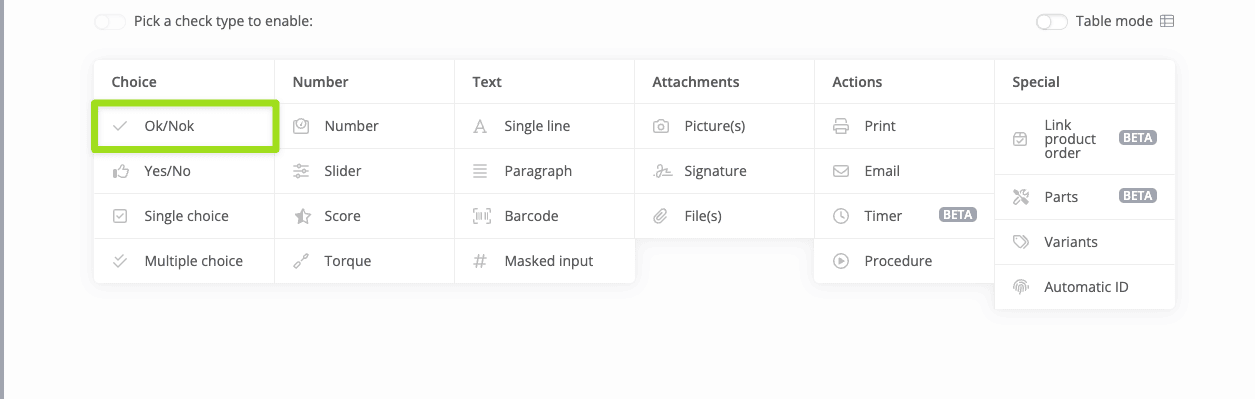
OK/NOK Check
The operator taps OK or NOK.
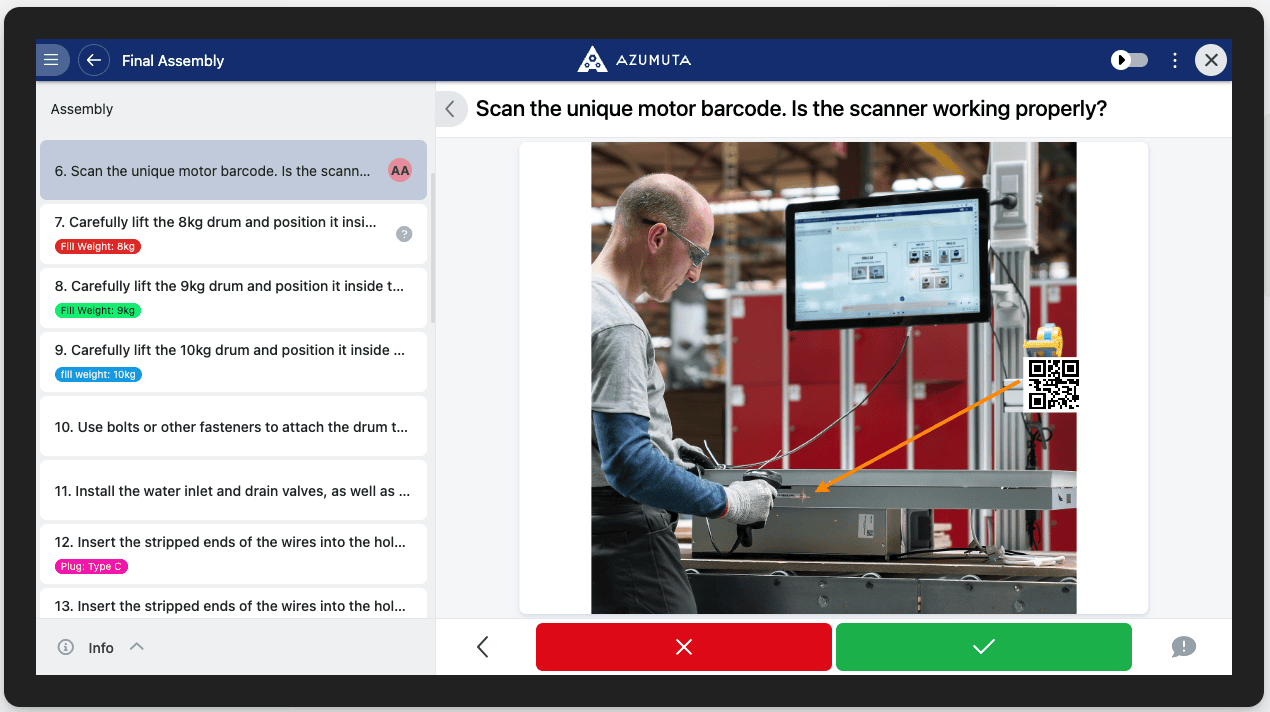
- Request to fill in a note when checking OK and Request to fill in a note when checking NOK ask the operator for a note after that answer.
- Can't proceed when selecting NOK keeps the operator on the step after a NOK answer. Add an Optional message when invalid to show a pop-up that explains why.
- Can't finish work instruction when selecting NOK stops the operator from finishing the work instruction after a NOK answer.
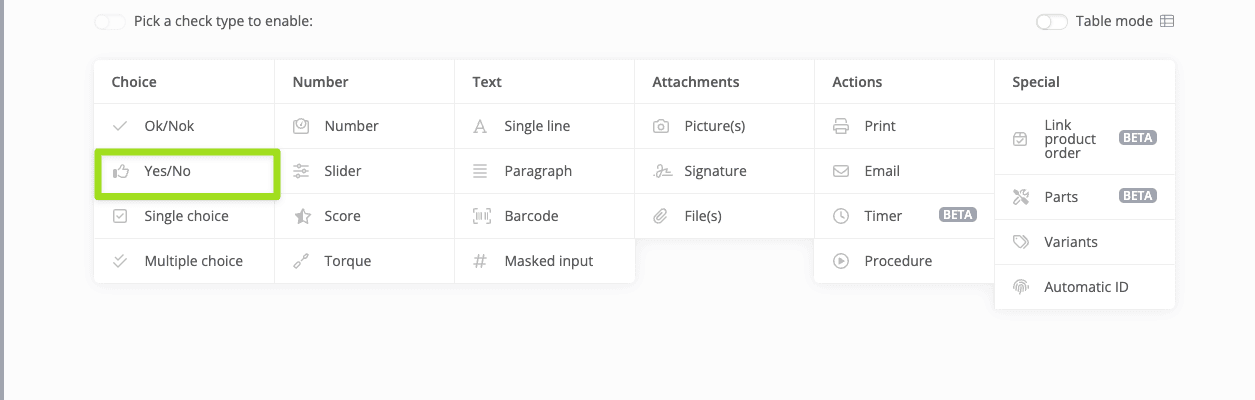
Yes/No Check
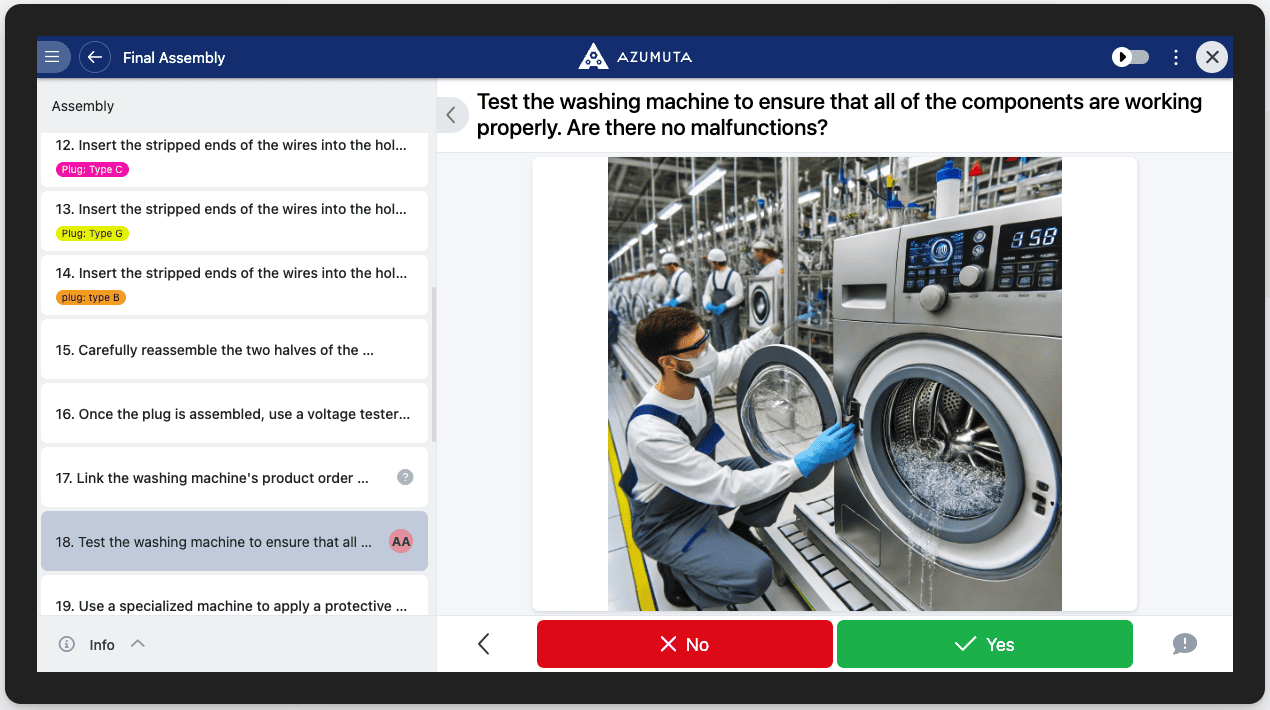
The operator taps Yes or No. The options are the same as for the OK/NOK check, with Yes and No instead of OK and NOK.
Single Choice Check
The operator picks one answer from a list of choices.
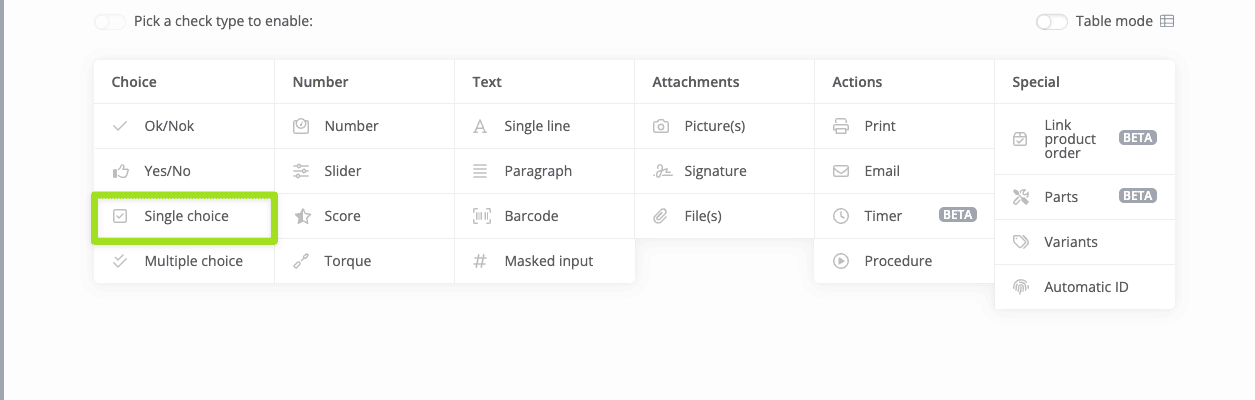
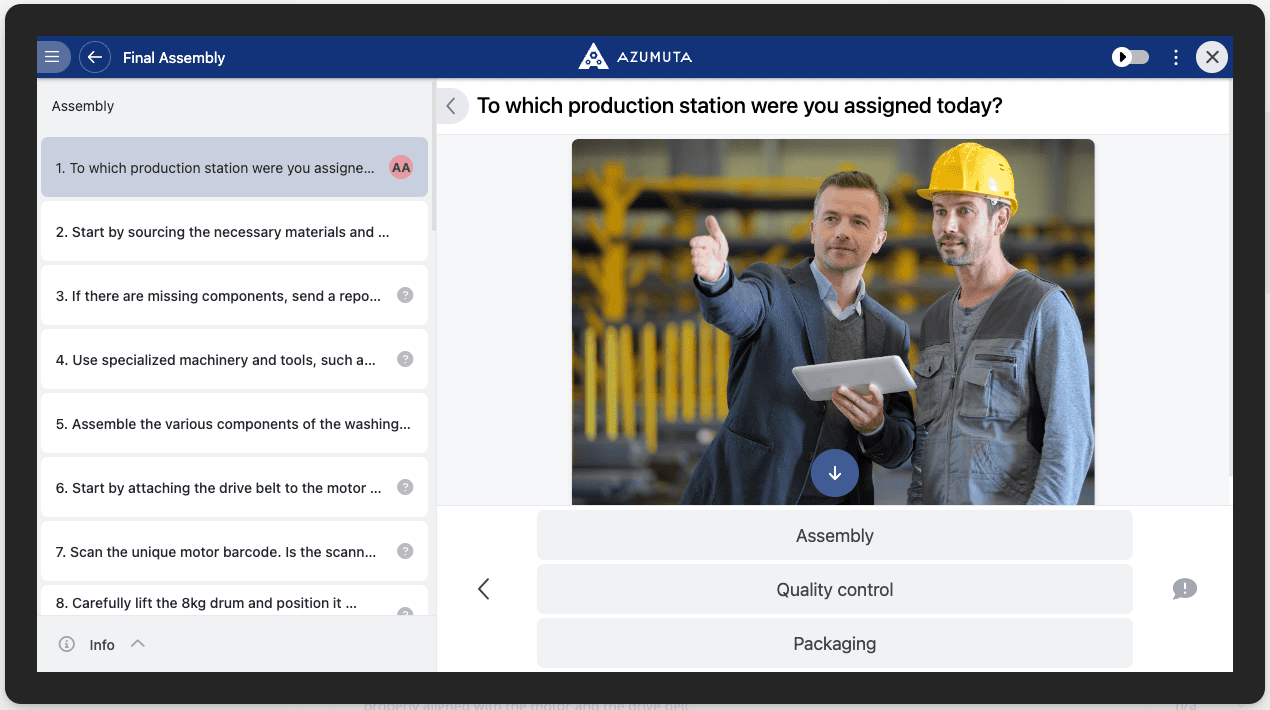
- Choices: add each choice with a label in every language of your workspace. To add many at once, paste them from Excel.
- Group choices: lets operators narrow down a long list. Operators first pick a group, then a choice in that group. After you switch it on, use Add group to create a group and assign each choice to one. Choices without a group are listed under No group, so a check stays as it was until you group its choices.
- Write value to parameters: saves the selected choice in a parameter, in the language you pick under Language in which to write choice value.
- Compare value with parameter: the selected choice must match the parameter value, in any language. A choice that doesn't match is shown in red. Turn on Required to be equal before submitting to stop the operator from submitting it.
Multiple Choice Check
The operator selects one or more answers from a list of choices, then confirms with a save button.
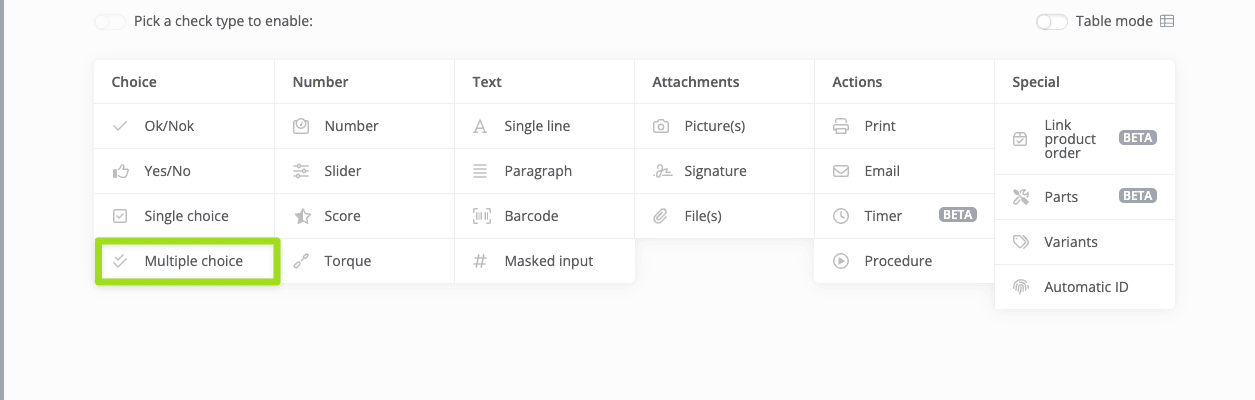
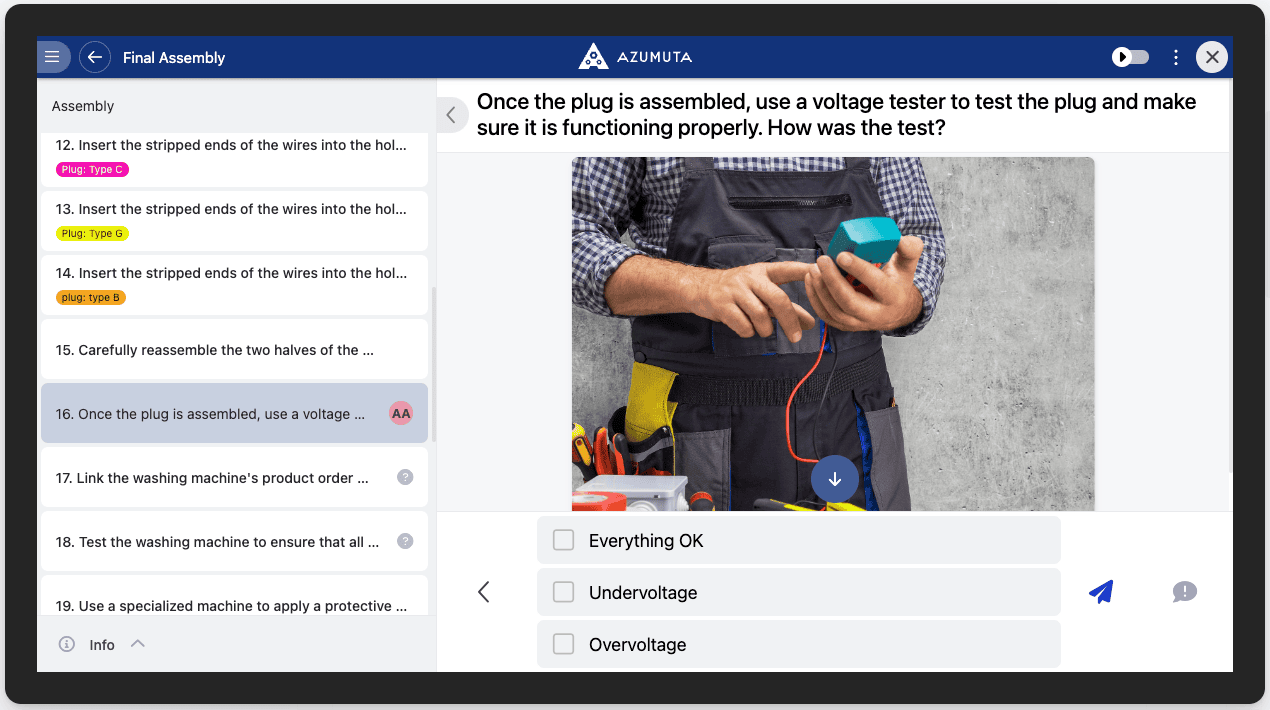
- Choices and Group choices work as for the single choice check.
- Write value to parameters: saves the selected choices in a parameter, joined by ", ".
Paste choices from Excel
Instead of typing every choice, copy a column from Excel and paste it into a single or multiple choice check:
- Copy the cells in Excel.
- Under Choices, click the field where the list should start.
- Paste.
Each row becomes its own choice. The paste starts at the field you clicked and overwrites the choices below it. If you paste more rows than there are choices, new choices are added.
- Languages: extra columns fill the other languages of your workspace, starting at the language of the field you clicked.
- Grouped choices: the paste stays inside the group of the field you clicked.
- Messages: Azumuta tells you when existing choices were replaced, and when pasted columns didn't fit your languages.
- Separators: rows and columns come from Excel itself. A comma inside a cell stays in that cell, and a comma-separated text is not split into choices.
Number-Based Checks
Tip: You can set a valid range for the Number, Slider, and Torque checks. The Score check has no valid range.
Number Check
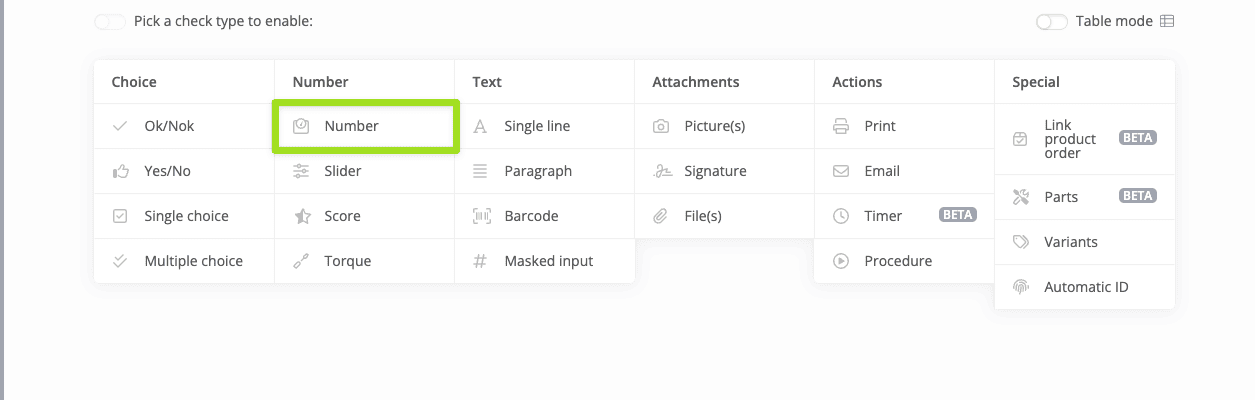
The operator types a number.
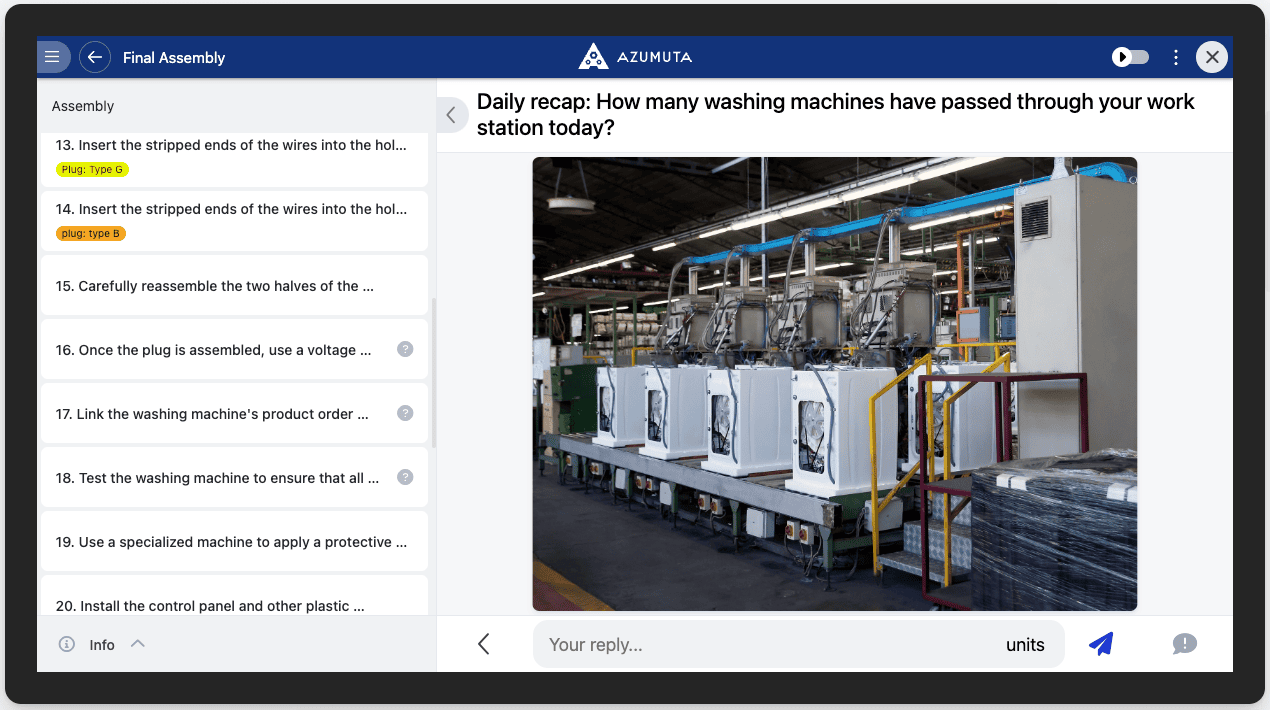
- Amount of fields: how many values the operator enters in one check.
- Unit of measurement and Show unit on left side.
- Minimum and Maximum set the range. Show minimum and/or maximum displays it to the operator. Required to be between minimum and maximum when filled in blocks an answer outside it.
- Precision sets the step between values, for example 0.01 for two decimals.
- Show reset button.
- Show the full keyboard so an exponent like 1e-3 can be typed: a tablet number pad has no e key, so switch this on for checks where operators type very small or very large values. Operators can then enter values like
1e-6,1E-6or-2.5e+3. The value is saved and checked as the number it stands for, so Minimum and Maximum keep working. Unfinished input such as1eis still refused. - Values can also be read from, written to, or compared with a parameter.
Slider Check
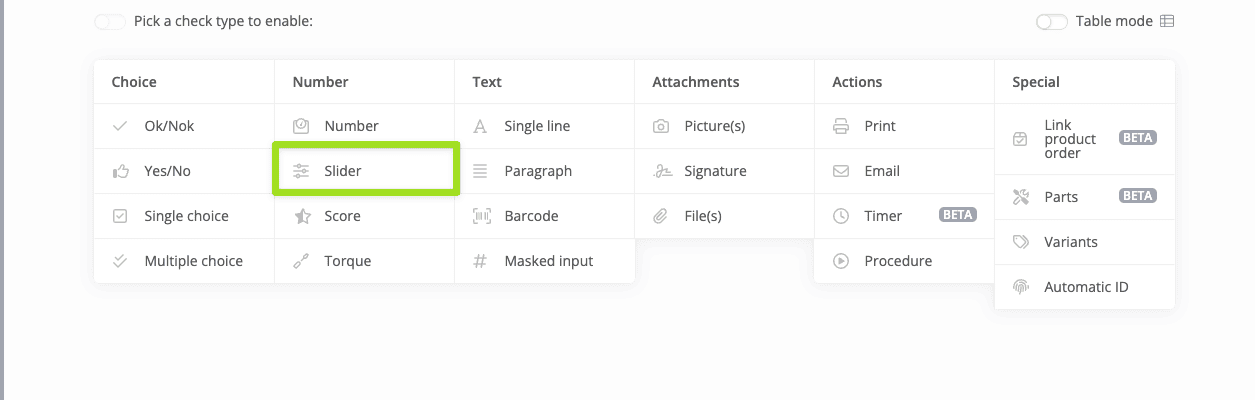
The operator drags a slider from the Minimum to the Maximum, in steps of the Step / increment. All three are required.
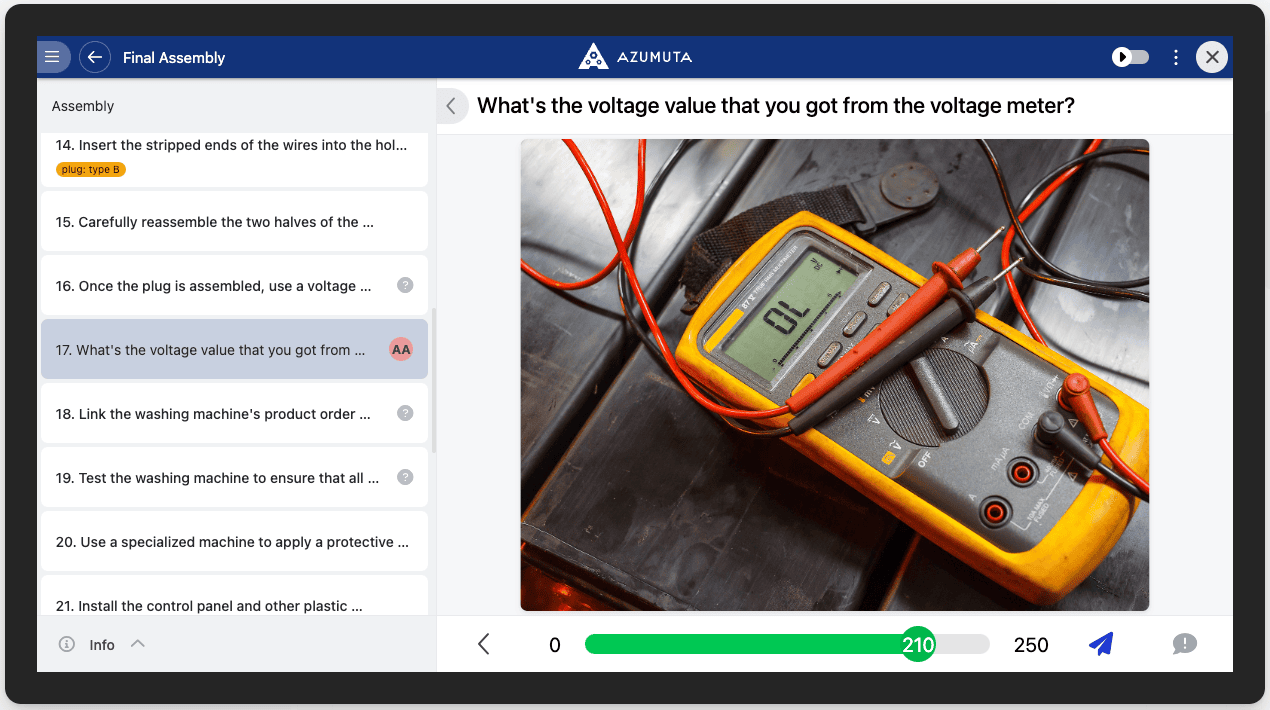
Expected minimum and Expected maximum define the valid answers. Required to be between expected minimum and maximum when filled in blocks answers outside them.
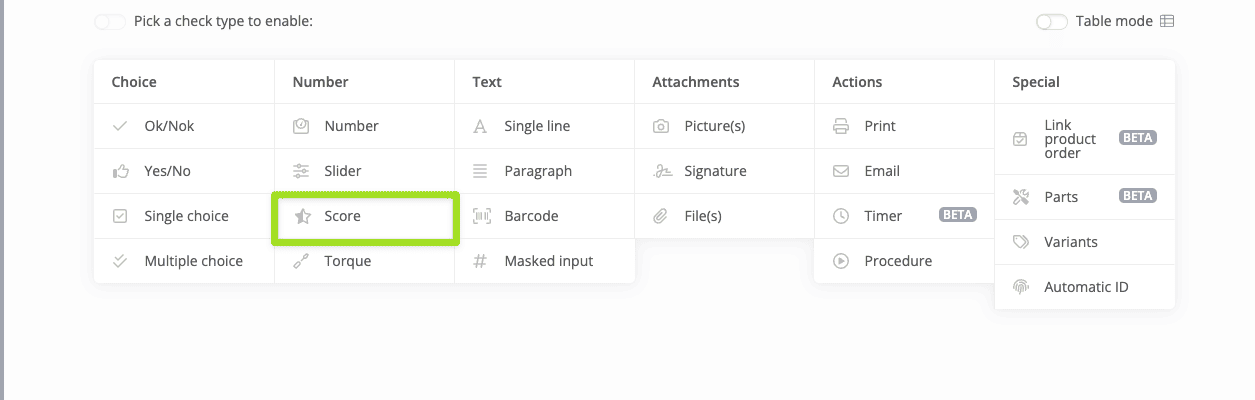
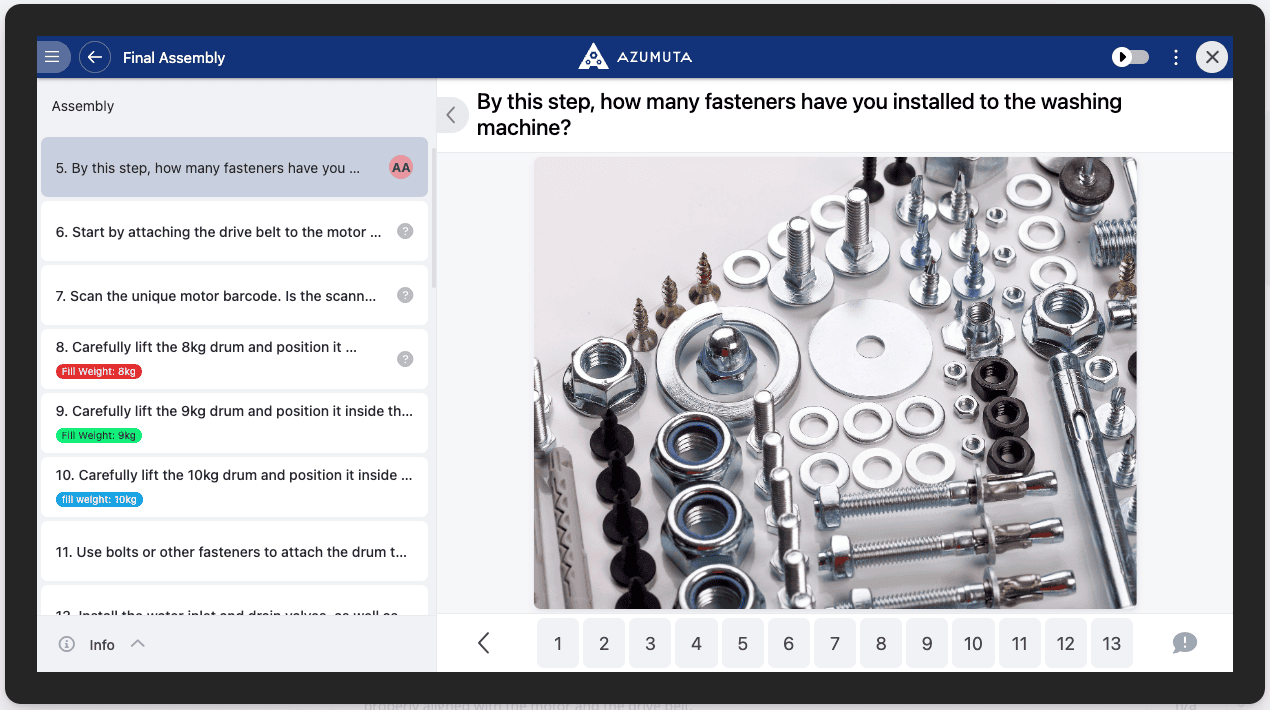
Score Check
The operator picks one number from a row of values between the Minimum and Maximum, in steps of the Step / increment (default 1). A score check shows at most 101 values.
Torque Check
The operator tightens with a connected digital torque wrench, and each tightening is checked against a target torque and tolerance, and optionally a target angle. The check is in Nm, lbf·in or lbf·ft. See Add a torque check to an instruction step.
Text-Based Checks
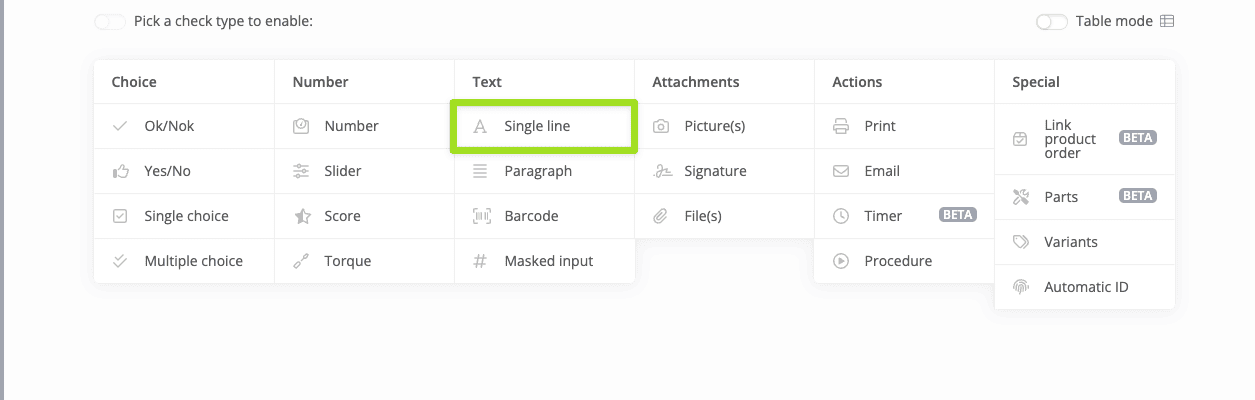
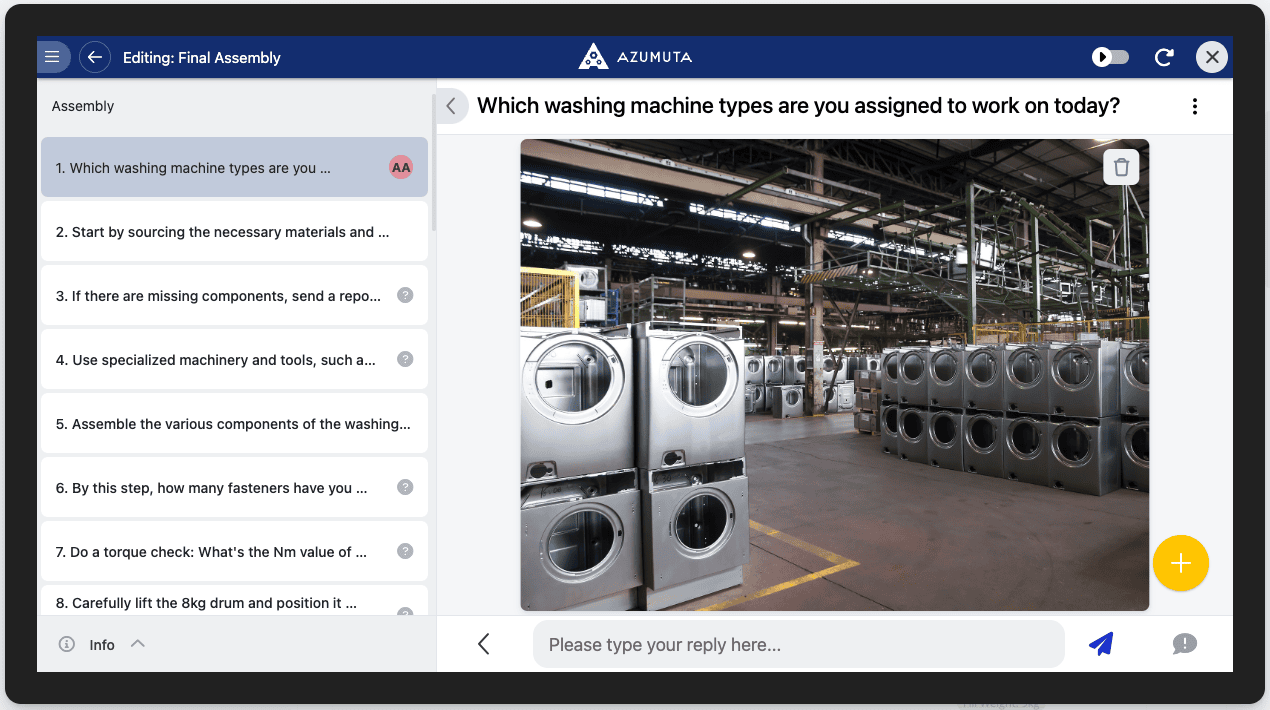
Single Line Check
The operator types one line of text.
- Read value from parameters and Write value to parameters are covered in Use a parameter in a Product Check.
- Compare value with parameter requires the answer to match the parameter value. Required to be equal before submitting blocks an answer that doesn't match.
- Set value as product order number saves the answer as the number of the product order.
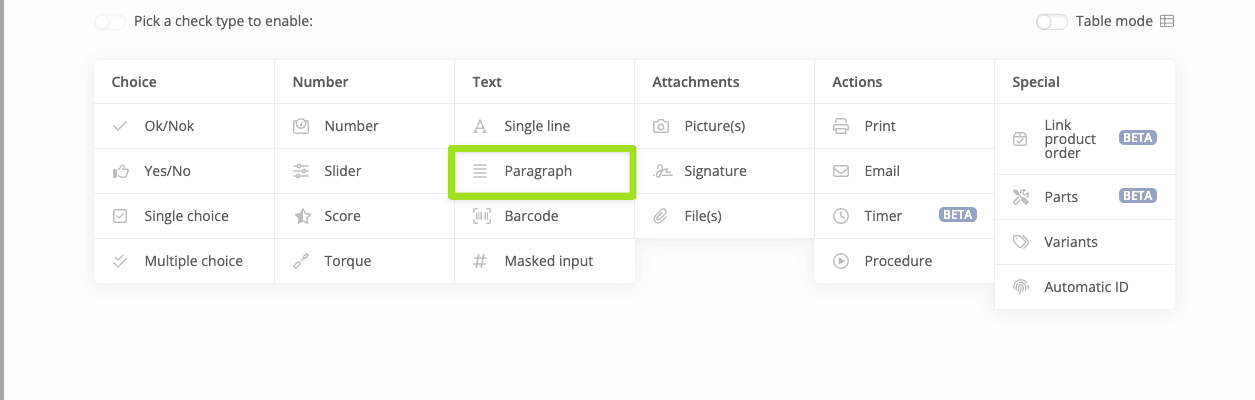
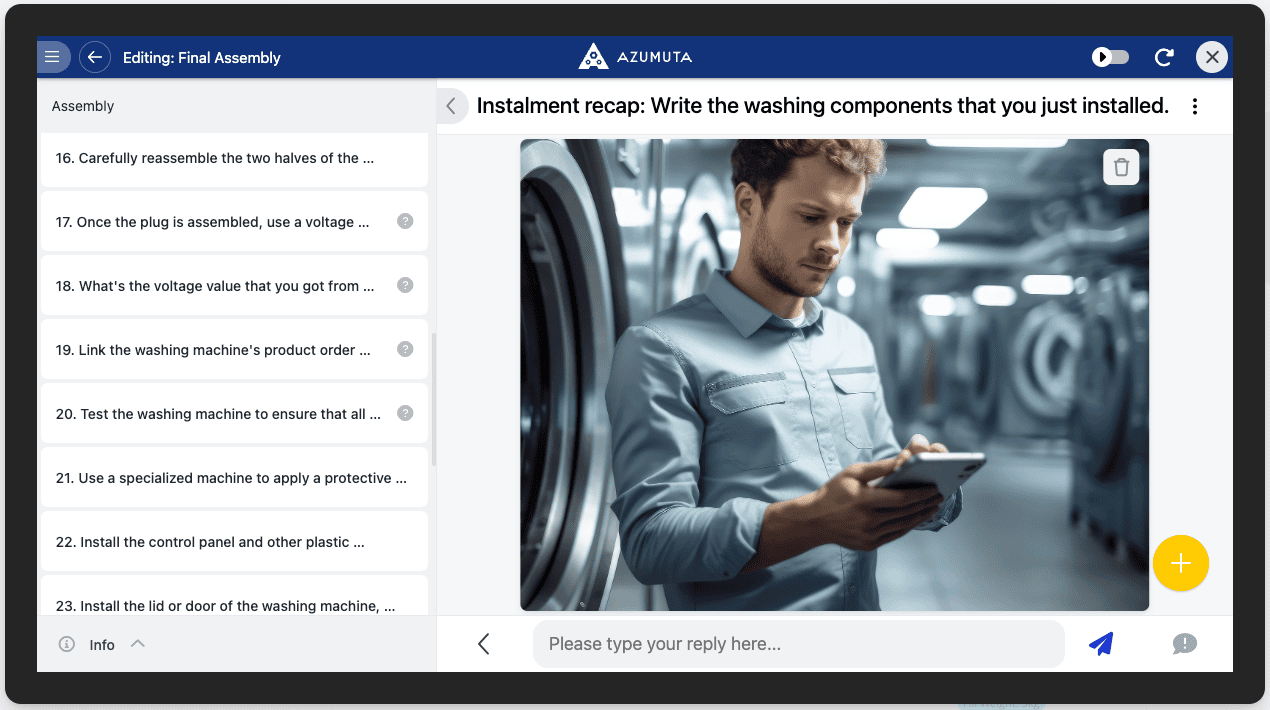
Paragraph Check
The operator types free text that can span several lines. It has the same parameter options as the single line check.
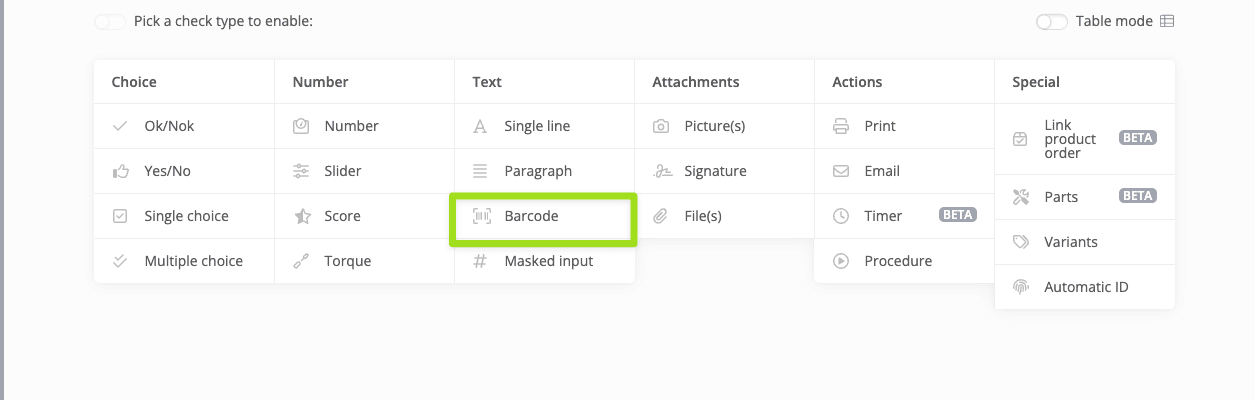
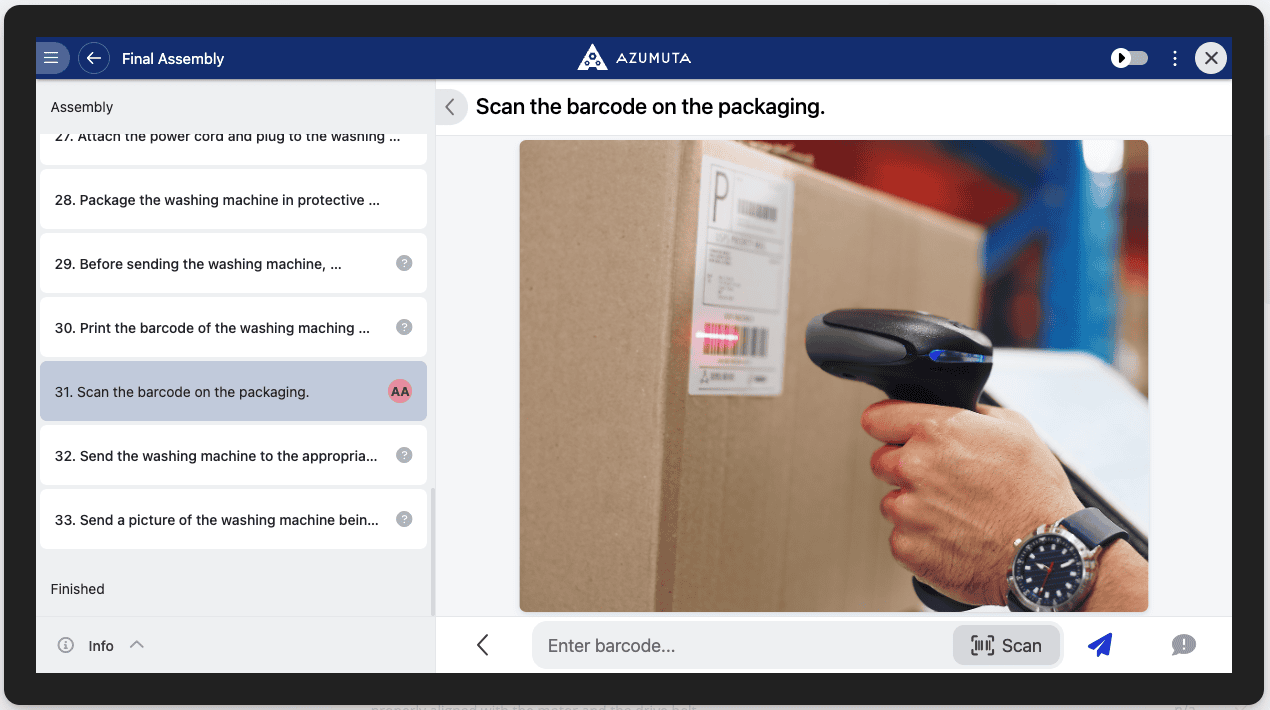
Barcode Check
The operator scans a barcode, or manually types in the barcode’s readable data string. The scanned values are saved as the answer in the product order work instruction report.
Barcode Options
- Type: (Any), EAN-13, EAN-8, UPC-A, UPC-E, Code 128, Code 93, Code 39, Interleaved 2 of 5 (ITF), PDF417, QR, or Data matrix. Code 39 uses standard mode only, so special characters in full ASCII barcodes may not be decoded correctly.
- Format: limits the scanned value to a pattern. Use # for a number (0-9), _ for a letter (A-Z, a-z), and * for any character. Other characters are fixed. For example,
#####accepts only 5-digit numbers, and a value that doesn't match is rejected. - Barcode format is a regular expression (advanced): use a regular expression instead of the characters above. The expression must match the whole barcode.
- Trim spaces or newlines at the end of the scanned barcode removes them from the scanned value, which keeps data consistent across product orders.
- Barcode can be multiple lines: only available when the format is empty or a regular expression. Otherwise only the first line is used.
- Enable masked input: when the operator types the value by hand, the fixed characters in the format are added automatically. This is not recommended with a keyboard scanner, and not available with a regular expression.
- Read barcode format (#_*) from parameters: reads the barcode validation pattern from a parameter rather than pre-filling the answer value.
- Compare value with parameter and Set value as product order number work as for the single line check.
Masked Input Check
The operator types a value that must match a Mask that you define. This helps prevent typing errors.
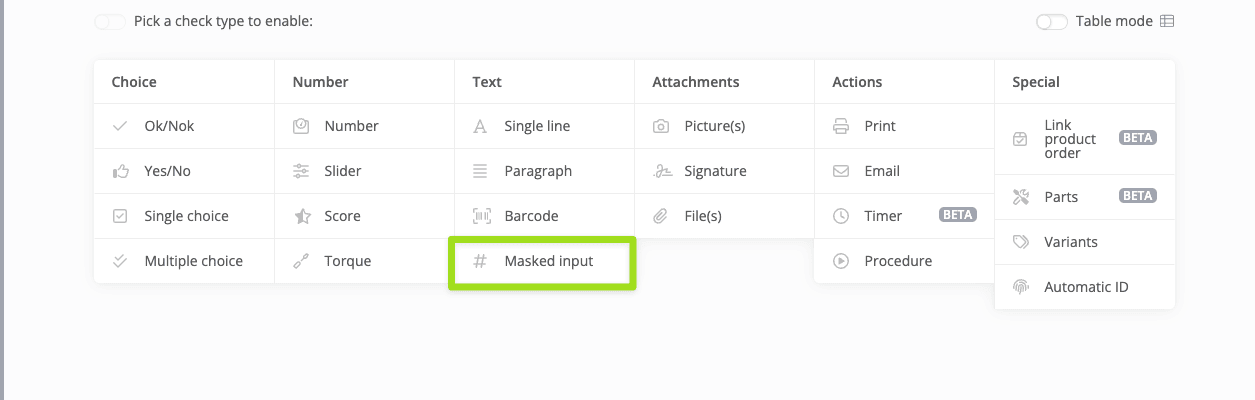
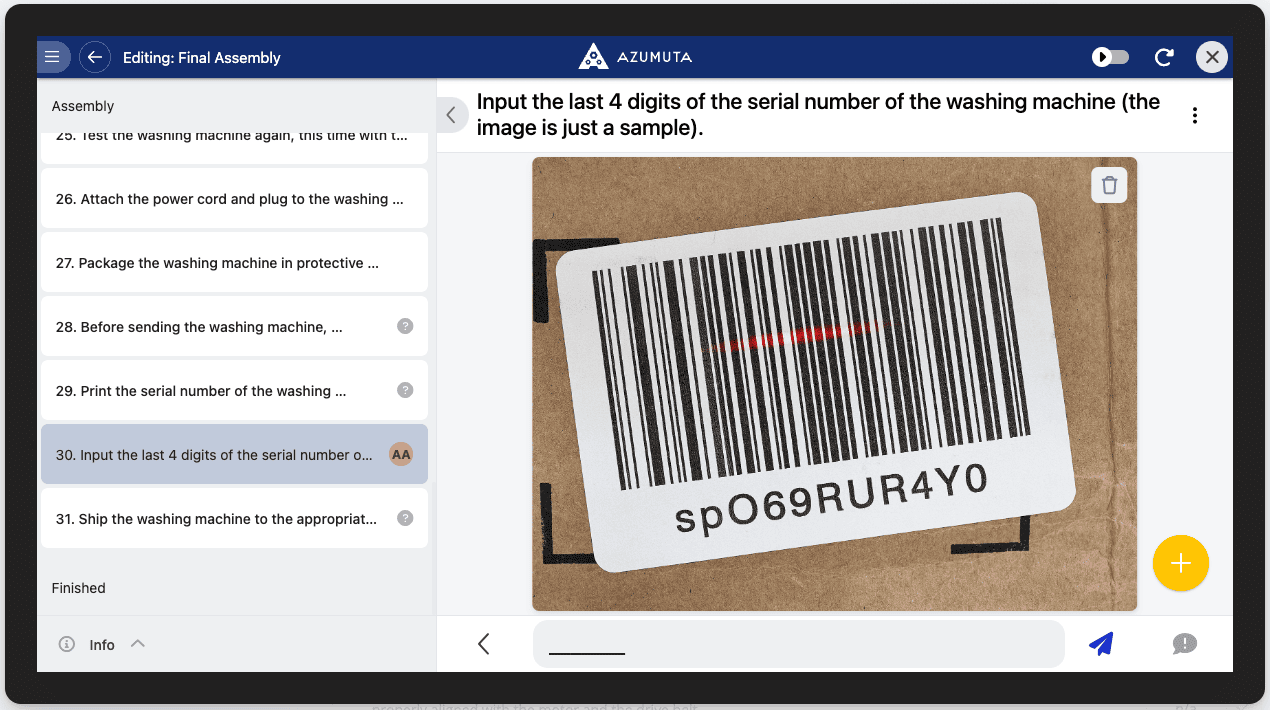
Use # for a number (0-9), _ for a letter (A-Z, a-z), and * for any character. Other characters are fixed. For example, the mask #-___-### accepts a digit, a dash, three letters, a dash, and three digits. Set value as product order number is available here too.
Note: The value always has to match the mask, so only use this check when the format never changes.
Attachment-Based Checks
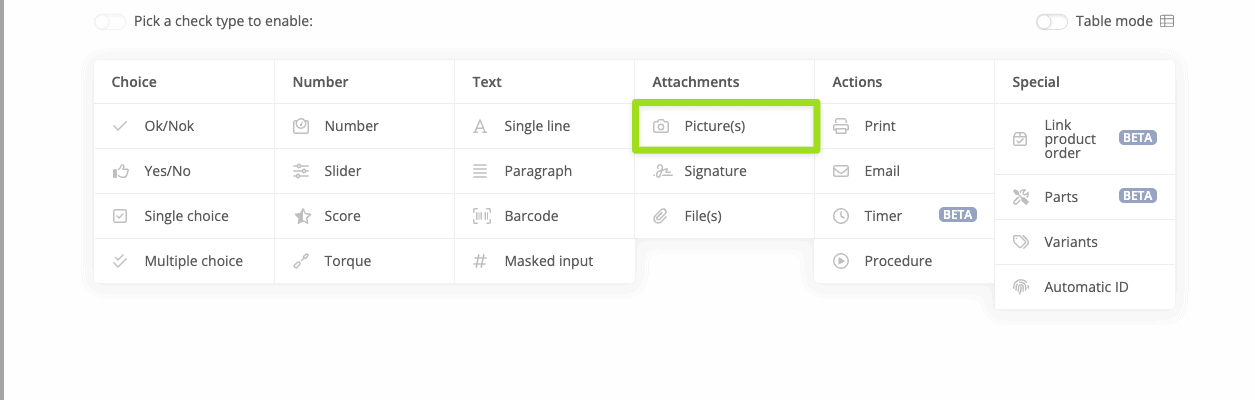
Pictures Check
The operator adds one or more pictures and can type a remark.
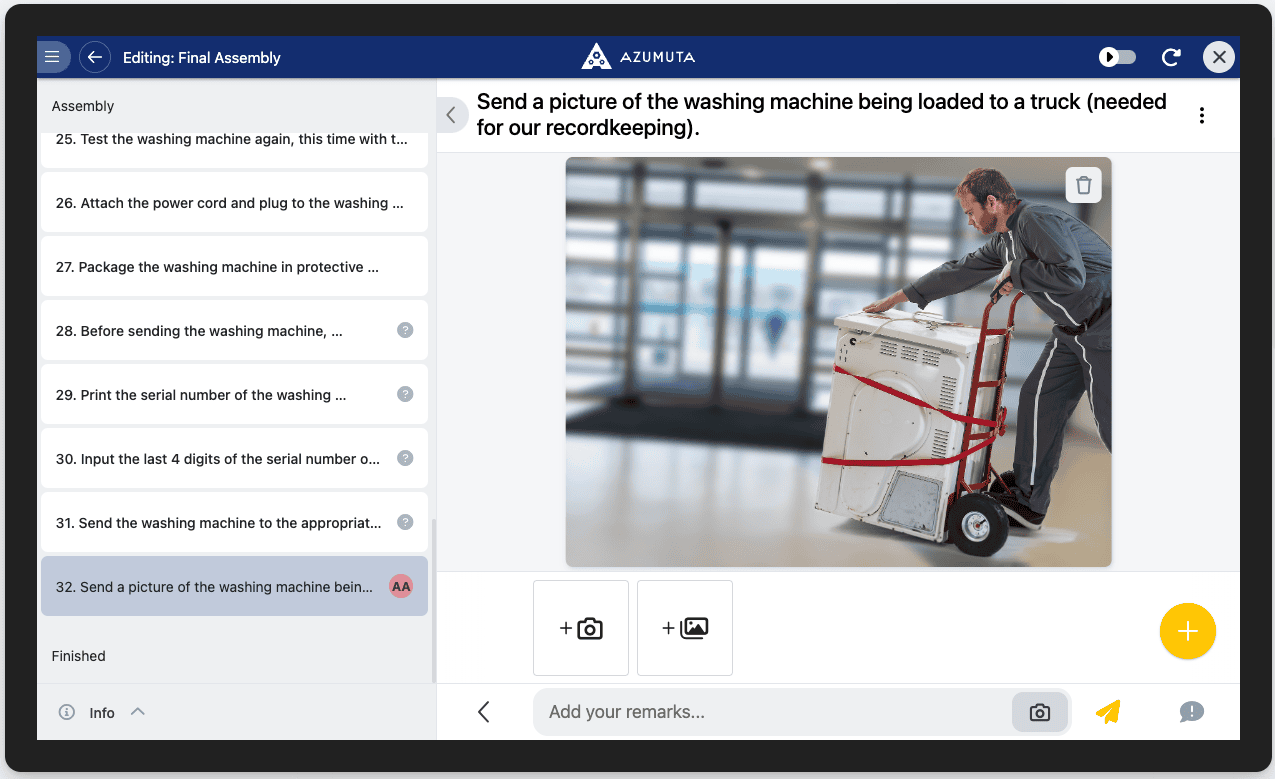
- Show preview pictures as cards shows the added pictures as cards.
- Write file names to parameters saves the names of the pictures in a parameter, joined by ", ". A picture without a name is called
picture1.jpg,picture2.jpgand so on, by its position on the step. - Write remark to parameters saves the remark in a parameter.
Submitting the step with nothing filled in writes an empty value to both parameters. Pressing N/A writes nothing. Parameters are not written in the preview on the Check tab, so test them on a device. See Rules on a picture or files check to react to the answer.
Electronic Signature Check
An electronic signature check asks the operator to confirm their identity before the answer is recorded, instead of drawing a signature. This is useful when a step needs proof of who approved it, with an audit trail, rather than just a name and a doodle.
You configure:
- Electronic signature allowed by: choose who can provide the signature, the current user, specific users, or specific user groups. If you choose user groups, you can also exclude the current user from signing even if they belong to a selected group.
- Signature is requested automatically when reaching this check: when enabled (default), the authorization prompt opens as soon as the operator reaches this step. When disabled, the operator must tap Request signature to open it.
- Send email notifying the selected users or groups when signature is requested: sends a notification email when the signature request opens, once for each recording and operator.
- Authorization method: choose whether the operator can sign with a login identifier (if allowed by the device’s security settings) or must always sign with email and password.
On the operator view, the operator (or the selected person or group) proves their identity with a badge or login identifier, email and password, or single sign-on, depending on your configuration and device settings. Once authorized, the check records who signed.
Note: To require this check before an operator can continue to the next instruction step, use the Required to be filled in before proceeding to next instruction step setting, the same general option available on every check type.
Note: While the device is offline, an electronic signature only works when it is allowed by user groups and signing with a login identifier is enabled.
Handwritten Signature Check
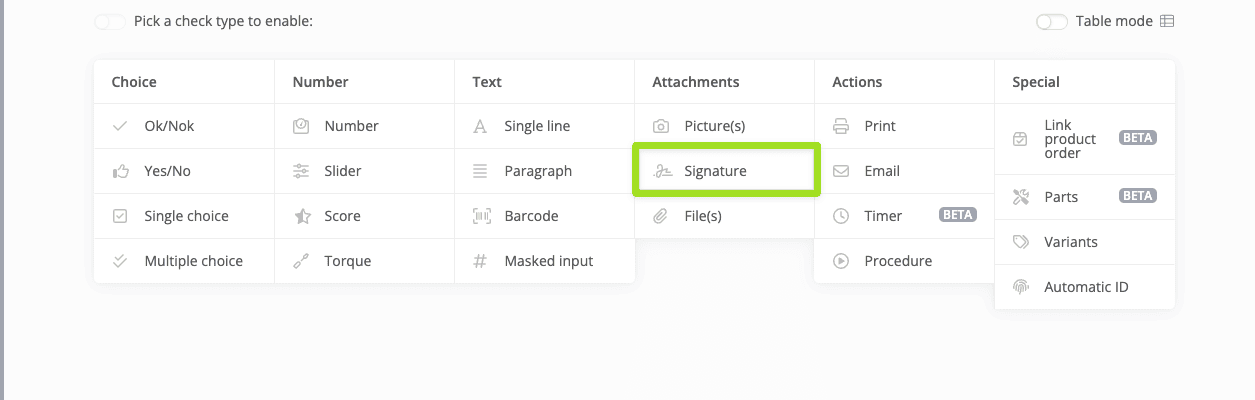
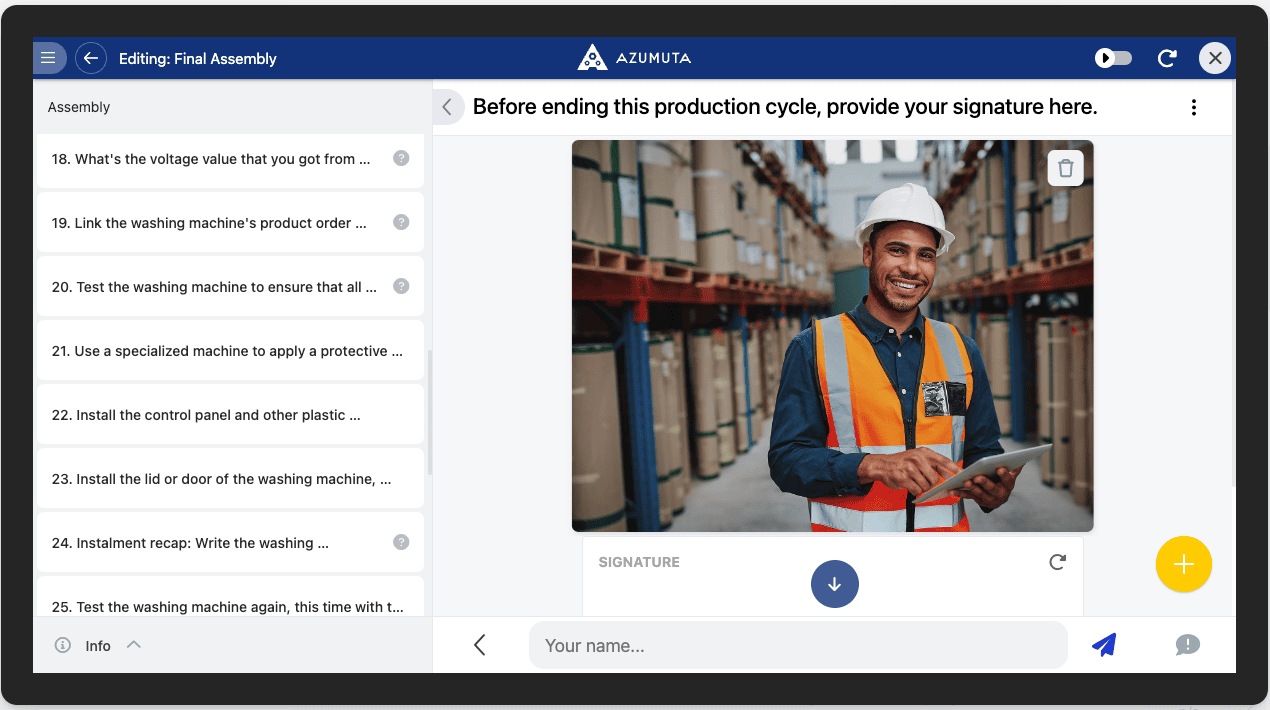
The operator draws a signature and types their name. If the check is required before proceeding, a drawn signature is needed. A name alone is not enough.
Files Check
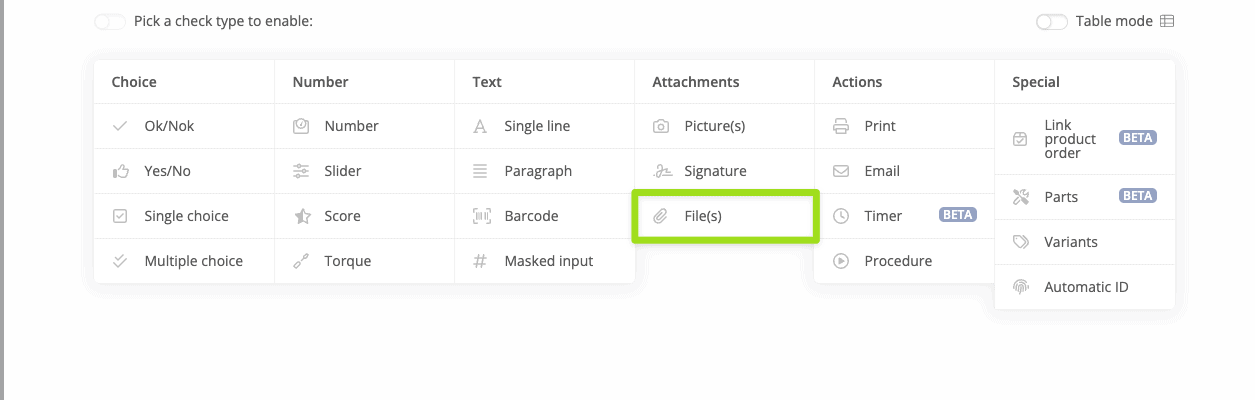
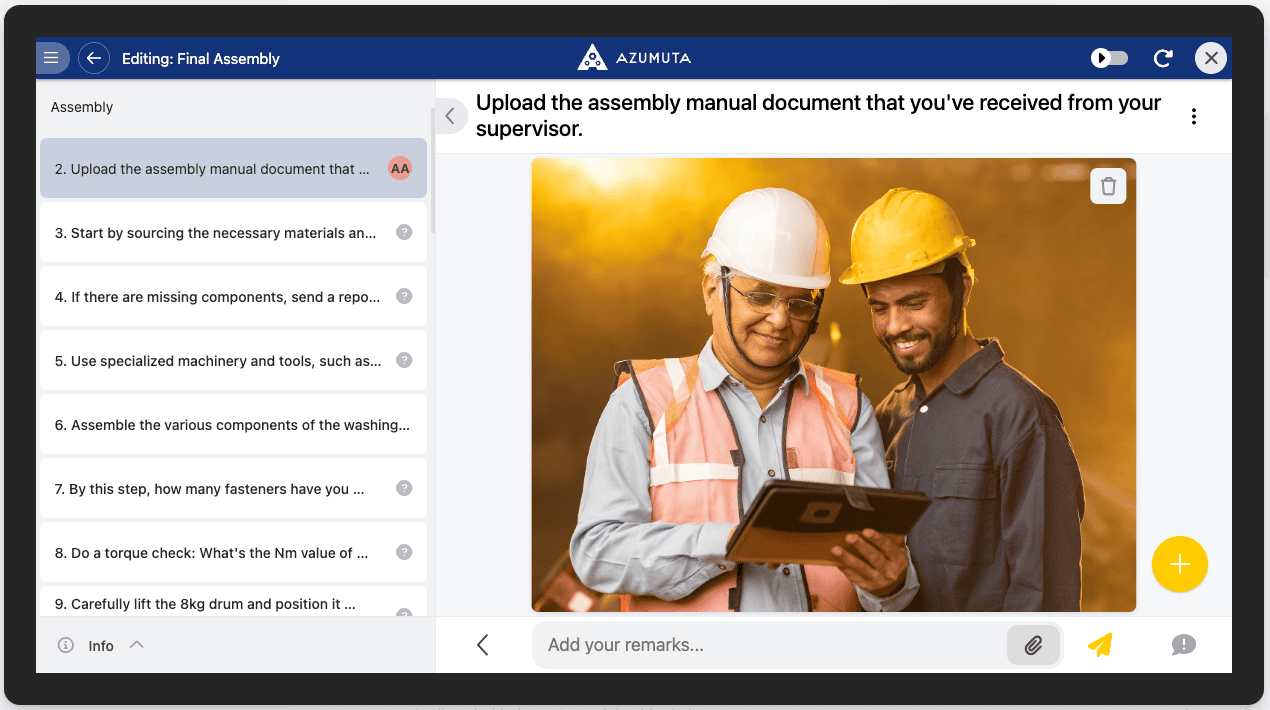
The operator adds one or more files and can type a remark.
- Add files to recording attachments and Add files to product order attachments also add the files to the attachments of the recording or the product order.
- Write file names to parameters and Write remark to parameters work as for the pictures check. A file without a name is called
file1,file2and so on. - The N/A option is available on the files check too. See General options.
Rules on a picture or files check
In a rule, the Answer of a picture or files check has these conditions:
- exists: the operator added a file or typed a remark. Pressing N/A doesn't count.
- does not exist: the operator added no file and no remark.
- is N/A: the operator pressed N/A.
- is equal to and matches regular expression compare with the file names, joined by ", ".
In a rule action, ${=answer} is the same list of file names. File names are only compared as text, so a file called 2024-report.pdf is not treated as the number 2024.
Tip: To react to an answer or to N/A, put exists and is N/A in a group with Any condition is met.