
The Approval Board Layout

Updated

You can adjust an approval board’s layout to suit your preferences. Here are the possible adjustment possibilities:

How to Access an Approval Board

Before adjusting an approval board’s layout, here’s how you can navigate to an approval board:

  1. Go to “Continous Improvement” in the side panel.
  2. Click on the targeted approval board.

Approval Board Layout: Board View vs List View

  1. Board view: The approval requests are displayed sideways based on their status.
  2. List view: The approval requests are displayed downwards.
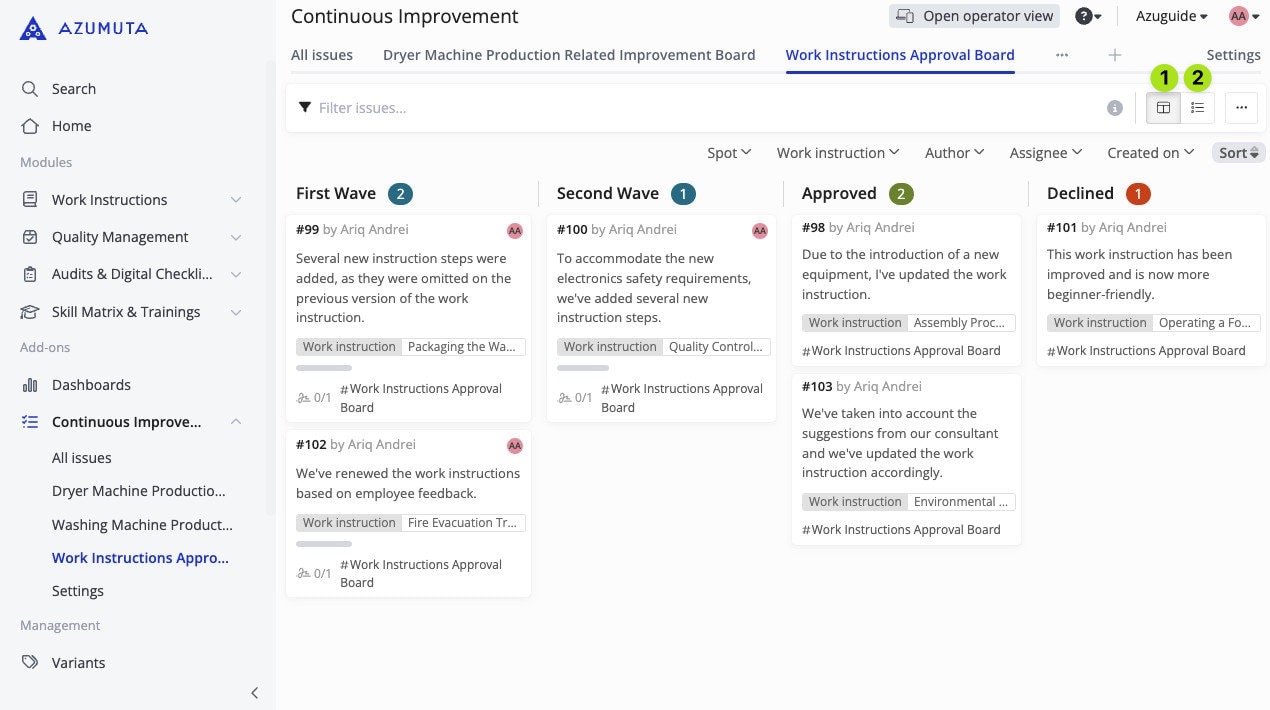
Screenshot of the Azumuta platform's Continuous Improvement module, showing the 'Work Instructions Approval Board' in a Kanban layout. The interface highlights two view-switching options in the top-right corner: 1) Board view for a column-based task overview and 2) List view for a detailed task summary. The board is divided into categories such as First Wave, Second Wave, Approved, and Declined, each displaying work instruction cards with task details. The sidebar offers navigation to modules like Work Instructions, Quality Management, and Continuous Improvement.

This is the approval board’s layout if you choose the board view:
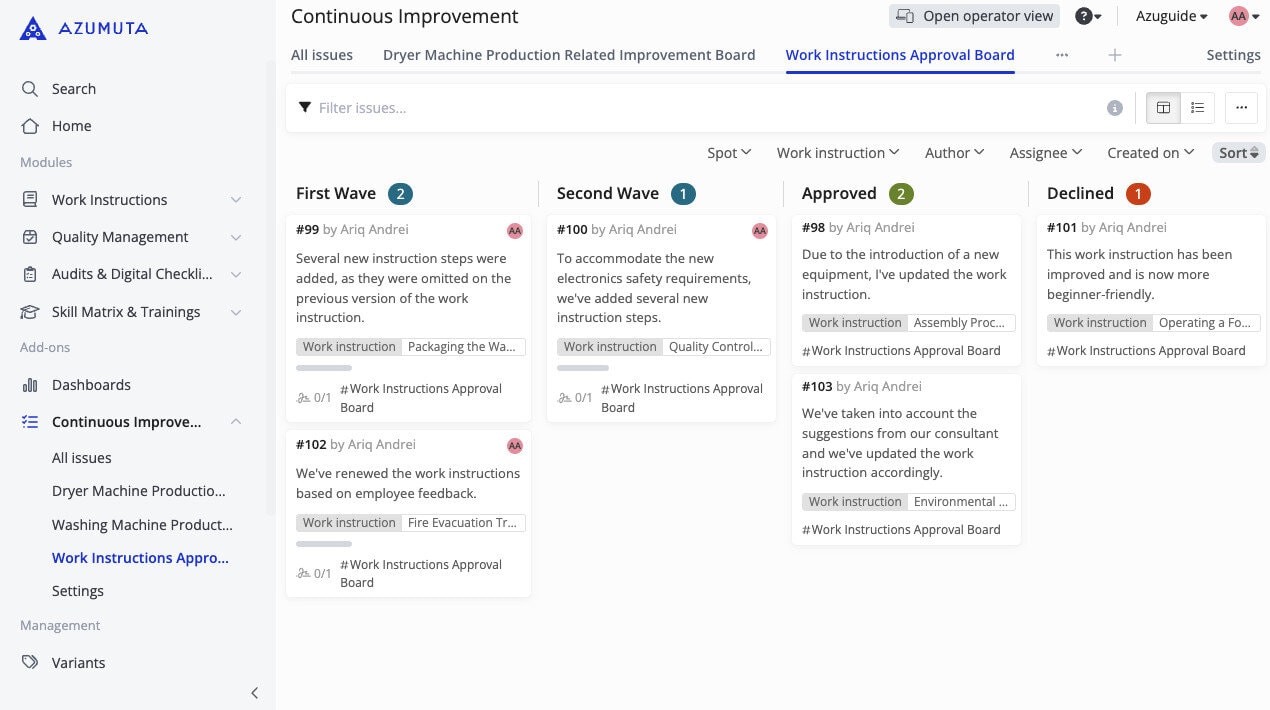
Screenshot of the Azumuta platform's Continuous Improvement module showcasing the 'Work Instructions Approval Board' in a Kanban layout. The board is organized into columns: First Wave, Second Wave, Approved, and Declined, each containing work instruction updates with details such as author, tags, and progress status. The sidebar includes navigation for modules like Work Instructions, Quality Management, and Dashboards. Users can filter, sort, and manage work instruction tasks effectively through the interface.

And this is the approval board’s layout if you choose the list view:
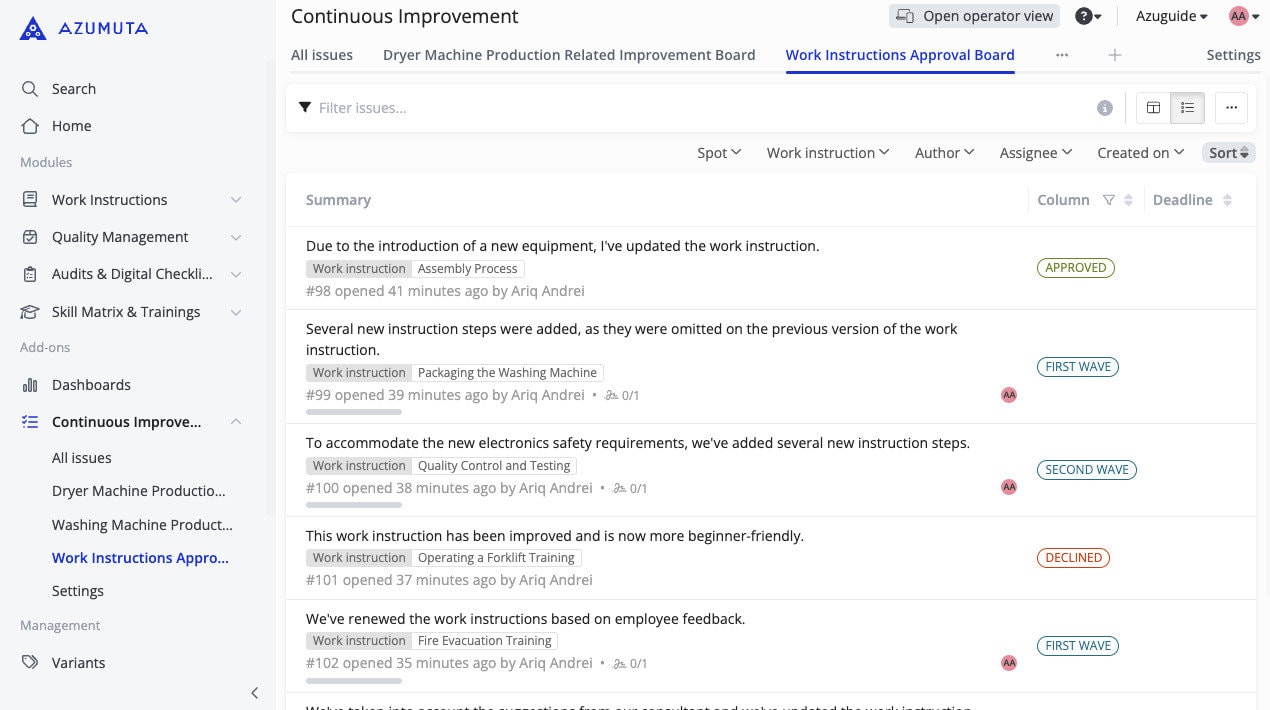
Screenshot of the Azumuta platform's Continuous Improvement module displaying the 'Work Instructions Approval Board' in list view. The list provides a detailed summary of work instructions, including titles, associated tasks, authors, timestamps, and approval status (e.g., Approved, First Wave, Second Wave, Declined). The sidebar includes navigation options such as Work Instructions, Quality Management, and Dashboards, with filtering and sorting options available at the top of the interface for efficient task management.

Approval Board Density: Compact Interface vs Standard Interface

As the name of the interfaces suggests, you can choose whether the approval board will be displayed in a compact or expanded manner.

Screenshot of the Azumuta platform's Continuous Improvement module, demonstrating how to adjust the display density of the 'Work Instructions Approval Board' list view. The image highlights the three-dot menu in the top-right corner, with a dropdown showing options for 'Compact' and 'Standard' density settings. Instructions with green arrows and text guide users to select their preferred density for a more streamlined or detailed view. The sidebar offers navigation for modules such as Work Instructions, Quality Management, and Continuous Improvement.

Searching for an Approval Request

You can use the following tools to find a specific approval request:
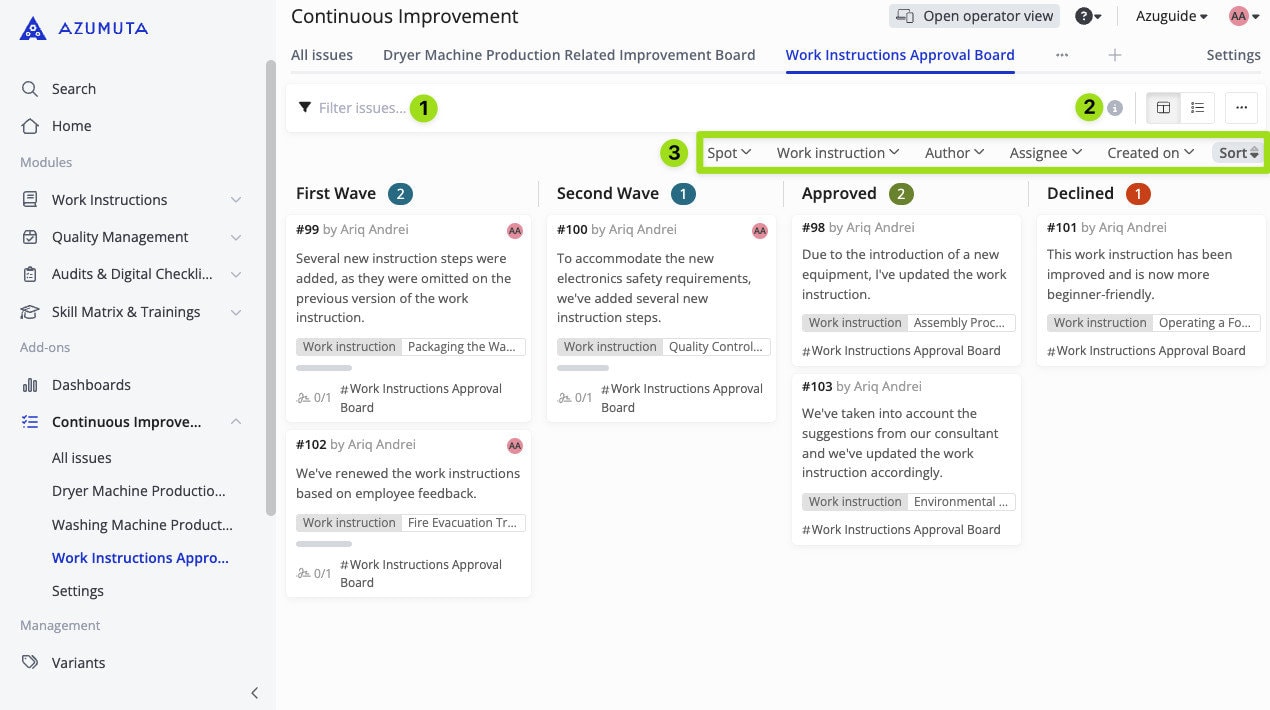
Screenshot of the Azumuta platform's Continuous Improvement module, focusing on the 'Work Instructions Approval Board' in a Kanban layout. The image highlights key features for filtering and sorting tasks: 1) a 'Filter issues' search bar for narrowing down tasks, 2) sorting and column customization options for task organization, and 3) a dropdown menu to spot tasks based on criteria such as Work Instruction, Author, Assignee, and Creation Date. The board is organized into categories like First Wave, Second Wave, Approved, and Declined for managing workflow efficiently

  1. Type in the number of the approval request that you’re looking for.
  2. Click on the tooltip for extra information.
  3. Use this tool to filter out approval requests based on their characteristics. You can also click on “Sort” to sort out approval requests based on their creation date/deadline date/completion rate.

Join The Digital Shop Floor Revolution!