
Hide and unhide a module/add-on/functionality from your workspace
In Azumuta, you can hide one or several modules/add-ons/functionalities from your workspace. If a module/add-on/functionality is hidden, then no one in your workspace can access it. Some users might want to do this for the following reasons:
- To temporarily reduce the platform’s complexity when onboarding new employees.
- To prevent unauthorized access to certain modules/add-ons/functionalities.
- To troubleshoot a certain problem/bug on the platform.
- And various other possible reasons.
And of course, you can unhide hidden items at any moment.
Hide an entire module/add-on from your workspace
Doing this will hide an entire module/add-on (and all of its features) from your workspace. To do this:
- Click Users under Management.
- Click Rights.
- Select the tab that bears the name of the module/add-on that you would like to hide.
- Click the eye icon next to General. Afterward, select one of the following options:
- If you click Disabled, then it will hide that module/add-on.
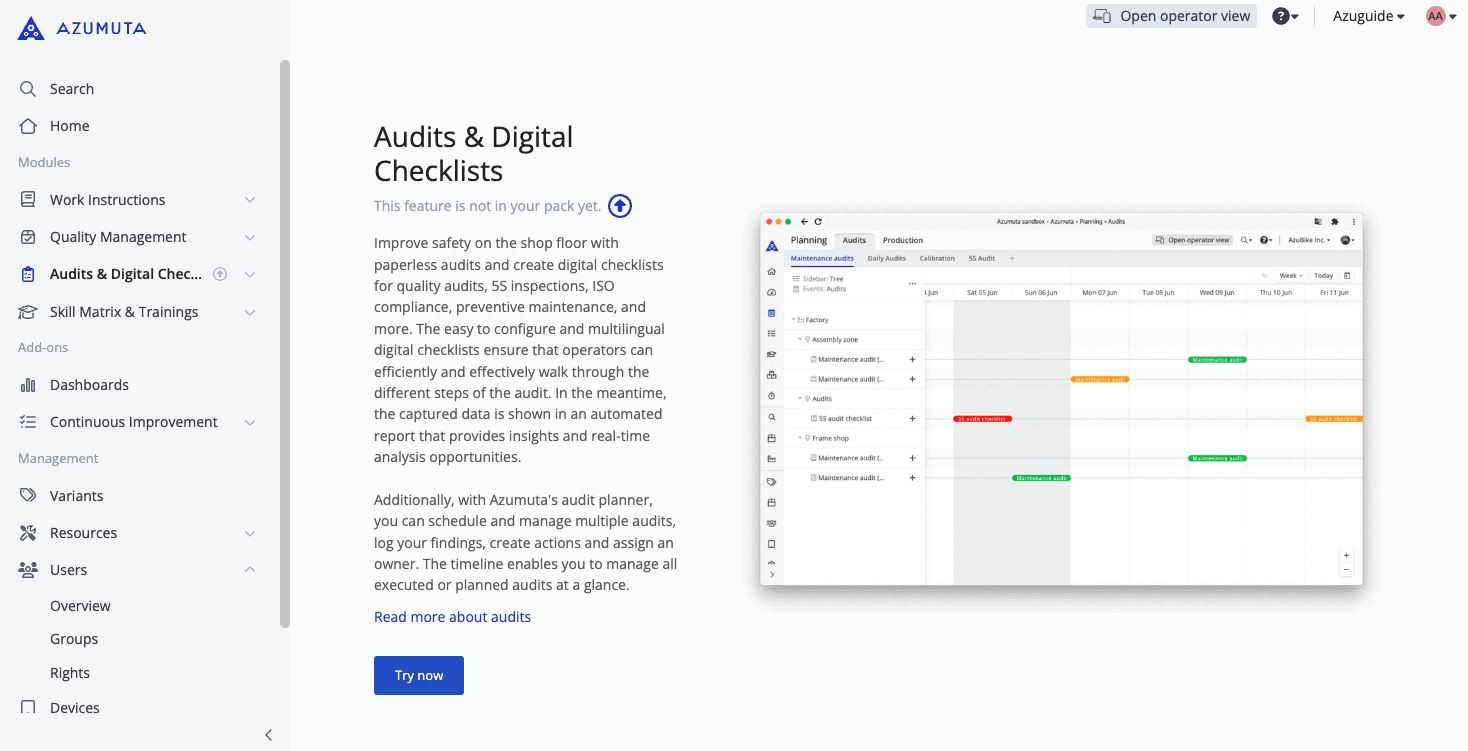
- If you click Disabled with teaser, then it will hide all of the features of that module/add-on, and it will replace them with a teaser for that module/add-on. For example, the image below shows the teaser of the Audits & Digital Checklists module:
Note: Unlike the 4 modules and the Continuous Improvement add-on, there’s no individual module/add-on tab for the Dashboards add-on. If you want to entirely hide the Dashboards add-on from your workspace, then you will have to hide it as a functionality on 3 separate tabs: the Quality Management, Audits & Digital Checklists, and Continuous Improvement tabs. Please consult the section below to see how you can hide a functionality from your Azumuta workspace.
Hide a functionality from your workspace
Besides hiding an entire module/add-on, you can also hide an Azumuta functionality (e.g., docx reporting, time study, etc.) from your workspace. To do this:
- Click Users under Management.
- Click Rights.
- Click the module/add-on tab that hosts the functionality that you would like to hide.
- Click the eye icon next to the topic tab that bears the name of the functionality that you would like to hide. Afterward, select one of the following options:
- If you click Disabled, then it will hide that functionality.
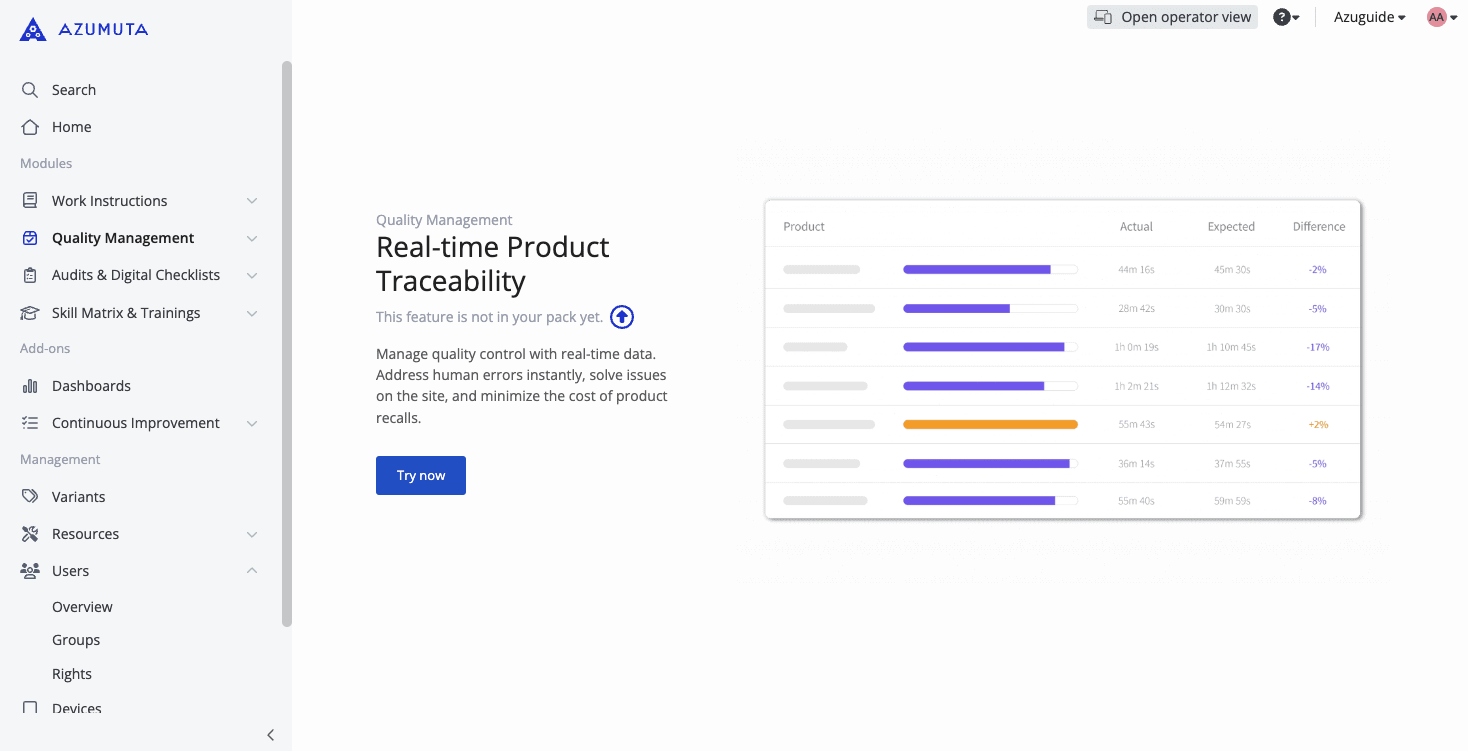
- If you click Disabled with teaser, then it will hide that functionality, and it will replace it with a teaser of that functionality. For example, the image below shows the teaser of the Time Study functionality:
Unhide a hidden module/add-on/feature in your workspace
- Click Users under Management.
- Click Rights.
- Navigate to the tab/topic tab that bears the name of the module/add-on/functionality that you would like to unhide.
- Click the crossed eye icon (if it was hidden) or the upwards arrow icon (it was hidden with a teaser).
- Click Enabled.