
Set an employee’s competency level
Set a competency level in the skill matrix
- Open the skill matrix tab.
- Click the box of the employee and the skill.
- Select the competency level between 1 and 5.
Change a competency level in the skill matrix
Follow the same steps and select a different level.
Set a competency level after a training
As an admin
Plan the training first. See how to plan a training as an admin.
To finish the training and give the level:
- Click Skill Matrix & Trainings in the homepage sidebar.
- Click Planning.
- Open the planning tab of the training.
- Click the training event dot.
- Click Fill out.
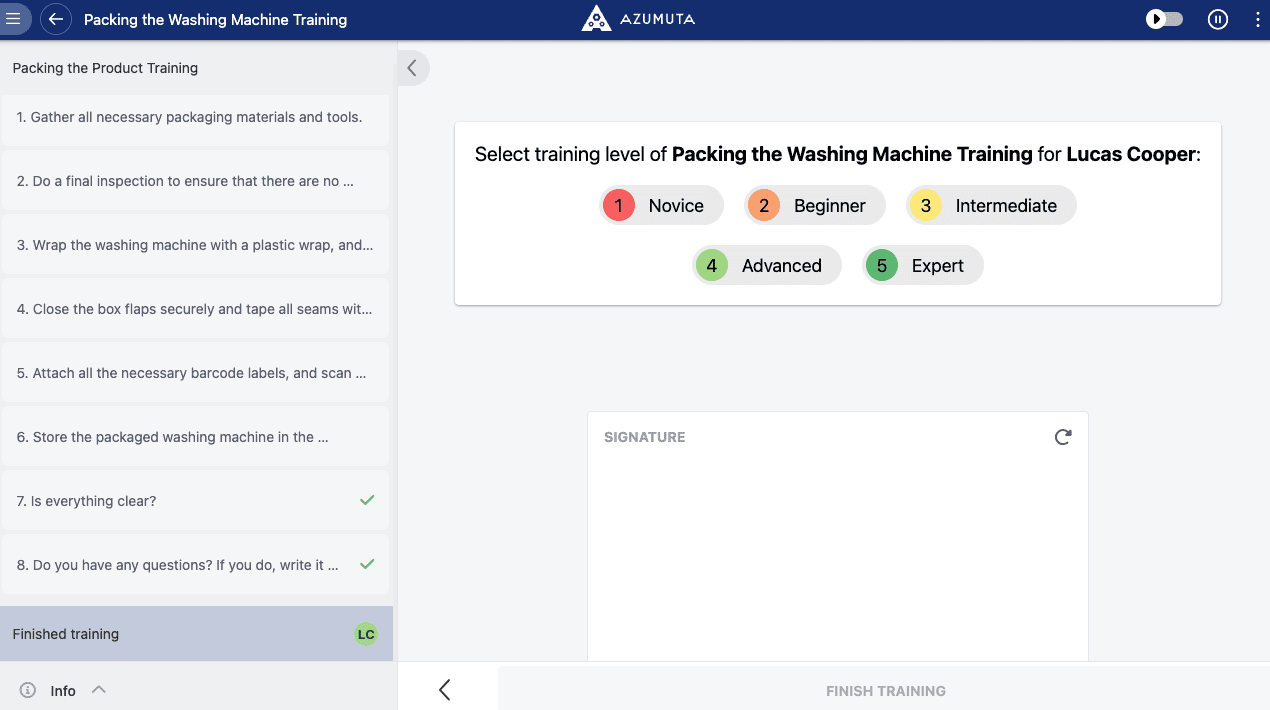
- Click Finished training.
- Select the competency level (1-5).
- Give your signature.
- Click Finish training.
The level appears in the skill matrix that is linked to the training.
To check the operator’s answers and the training summary first, click Report in the window that opens when you click the training event dot. The Detailed tab shows more information.
As an operator
The trainer gives the competency level. In the operator app, the trainer selects the level (1-5) and gives the trainer’s signature at the end of the training.
If the same person is trainer and trainee, they score themselves. To have someone else give the level, plan the training with another trainer.
Note: A training without trainer does not ask for a level or a signature. The trainee keeps their current competency level. An admin can still change the level in the skill matrix.
Delete a competency level
You need the right to delete competency levels.
- Open the skill matrix tab.
- Click the box of the employee and the skill.
- Click View history.
- Open the actions menu of the training you want to remove.
- Click Remove training.
- Confirm the removal.
See the competency level history
- Open the skill matrix tab.
- Click the box of the employee and the skill.
- Click View history.
Each entry in the history shows:
- The level and the skill or training it belongs to
- When it was set
- How it was set: Training, Training without trainer, Review during product order or Manual update
- Who gave it, with the trainer’s signature if there is one
- The validity period, notes and attachments, if any