
Edit your Azumuta profile
Edit your Azumuta profile to update your personal details, change your password, and set up two-factor authentication.
Edit your Azumuta profile
- Click the profile button on the top right corner of your screen.
- Click Settings.
- Make your edits.
- When you’re done, click Save.
On your Azumuta profile page, you can do the following edits:
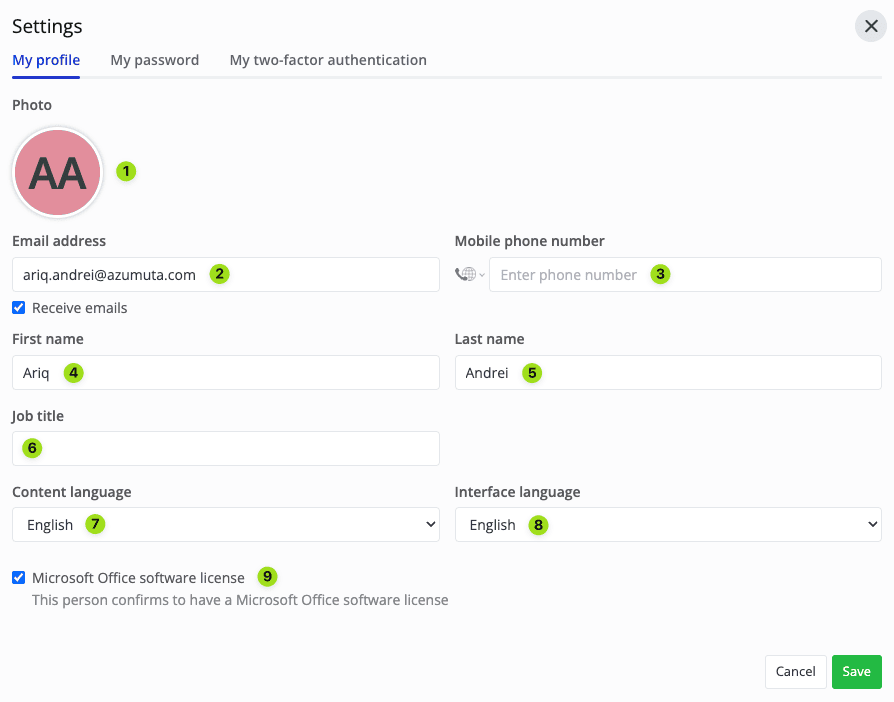
- Click to add/change your profile picture.
- Click to add/change your email address. You can choose whether to receive emails from Azumuta by ticking or unticking the “Recieve emails” box.
- Click to add/change your mobile phone number.
- Click to add/change your first name.
- Click to add/change your last name.
- Click to add/change your job title.
- Click to change your content language. Content language refers to the language that will be displayed on Azumuta-made contents, such as work instructions.
- Click to change your Azumuta platform’s interface language.
- Tick whether you have a valid Microsoft Office software license. If ticked, then you can edit Microsoft Word files on the Azumuta platform.
Change your Azumuta login password
- Click the profile button on the top right corner of your screen.
- Click Settings.
- Click the My password tab.
- Input your new password.
- Input your new password again.
- When you’re done, click Update password.
Add a two-factor authentication login to Azumuta
- Click the profile button on the top right corner of your screen.
- Click Settings.
- Click the My two-factor authentication tab.
- Select your preferred authenticator option.
- Follow the instructions from your preferred authenticator.