
Edit an improvement board
See how to create an improvement board for background. This article explains how to edit or delete one.
Note: There are 4 improvement board and flow templates: PDCA, Kanban, 8D, and Review. All 4 share the same editing settings. The examples in this article use the PDCA template.
To reach the board menu: go to Continuous Improvement in the side panel, click Settings, then click the ⋮ (three-dot) icon next to the board.
Open the improvement board editor
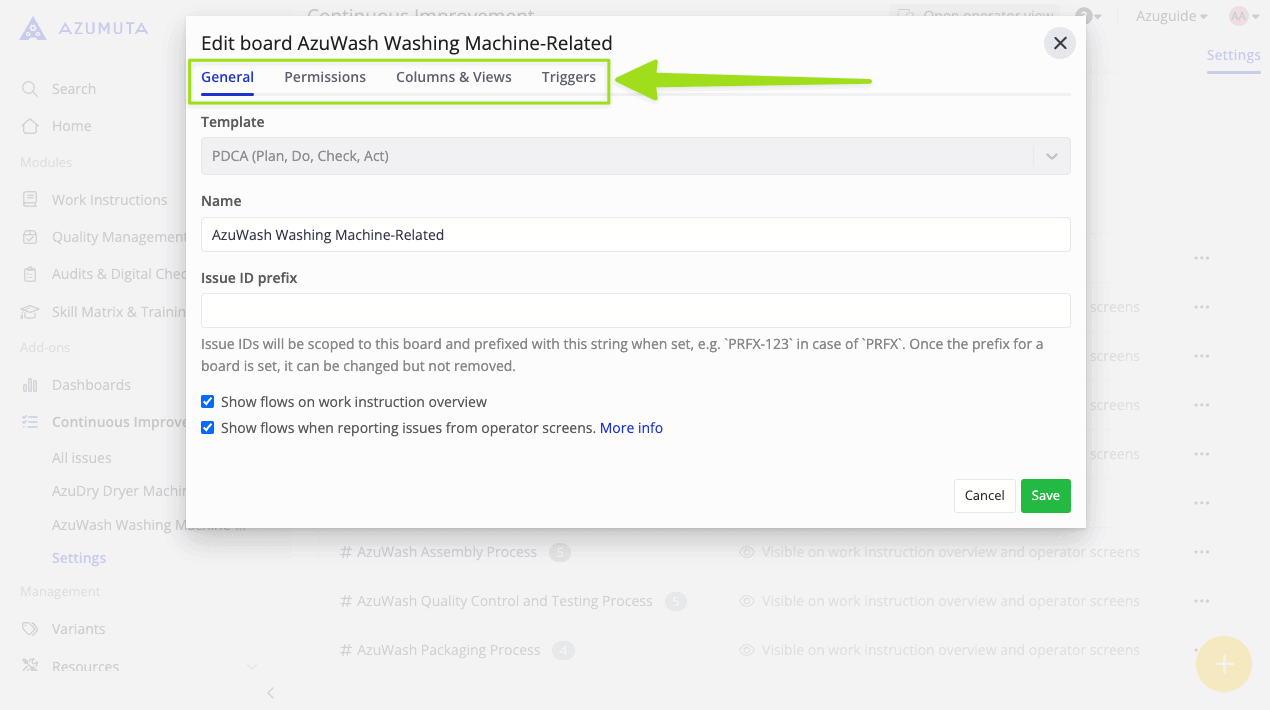
From the board menu, click Edit board. The editor has 4 tabs: General, Permissions, Columns & Views, and Triggers.
Edit general settings
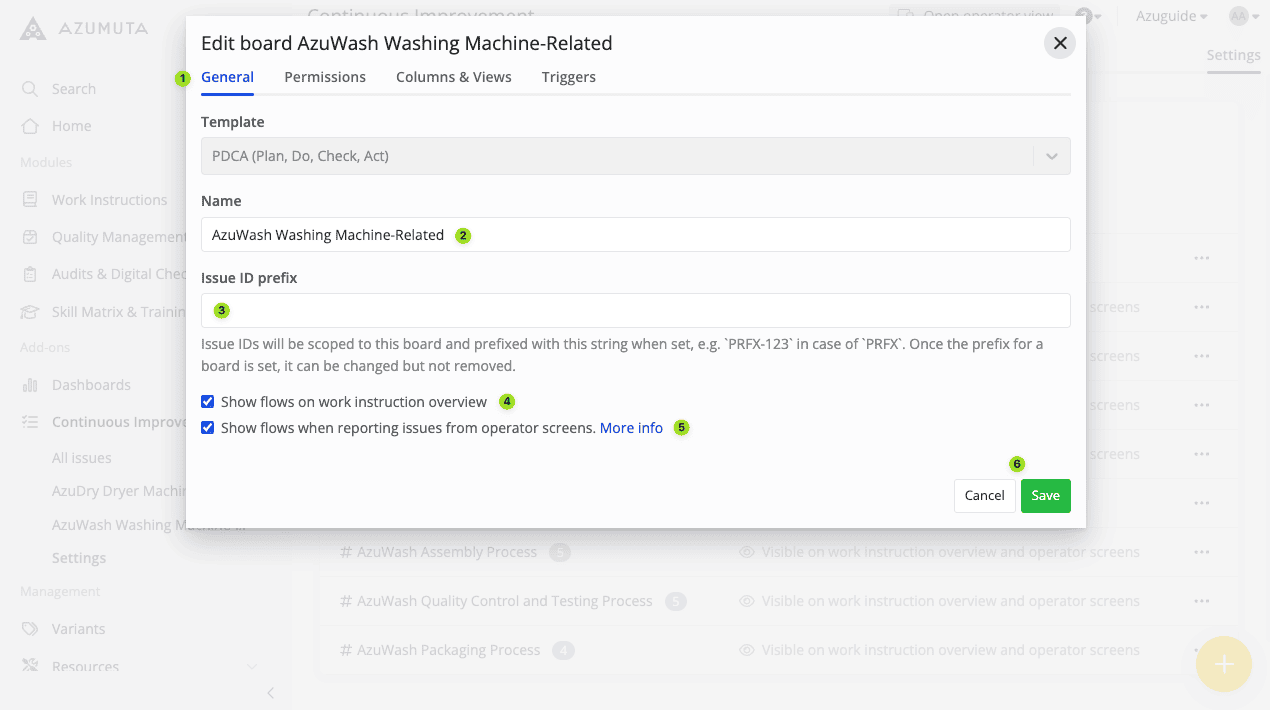
On the General tab, you can:
- Change the board’s name.
- Add a ticket prefix, up to 5 characters. For example, tickets on a board with the prefix TCKT are named TCKT-1, TCKT-2, and so on.
- Show or hide the board’s improvement flows on the work instruction overview.
- Let operators see and choose the board’s improvement flows when submitting a ticket.
Click Save.
Edit permissions
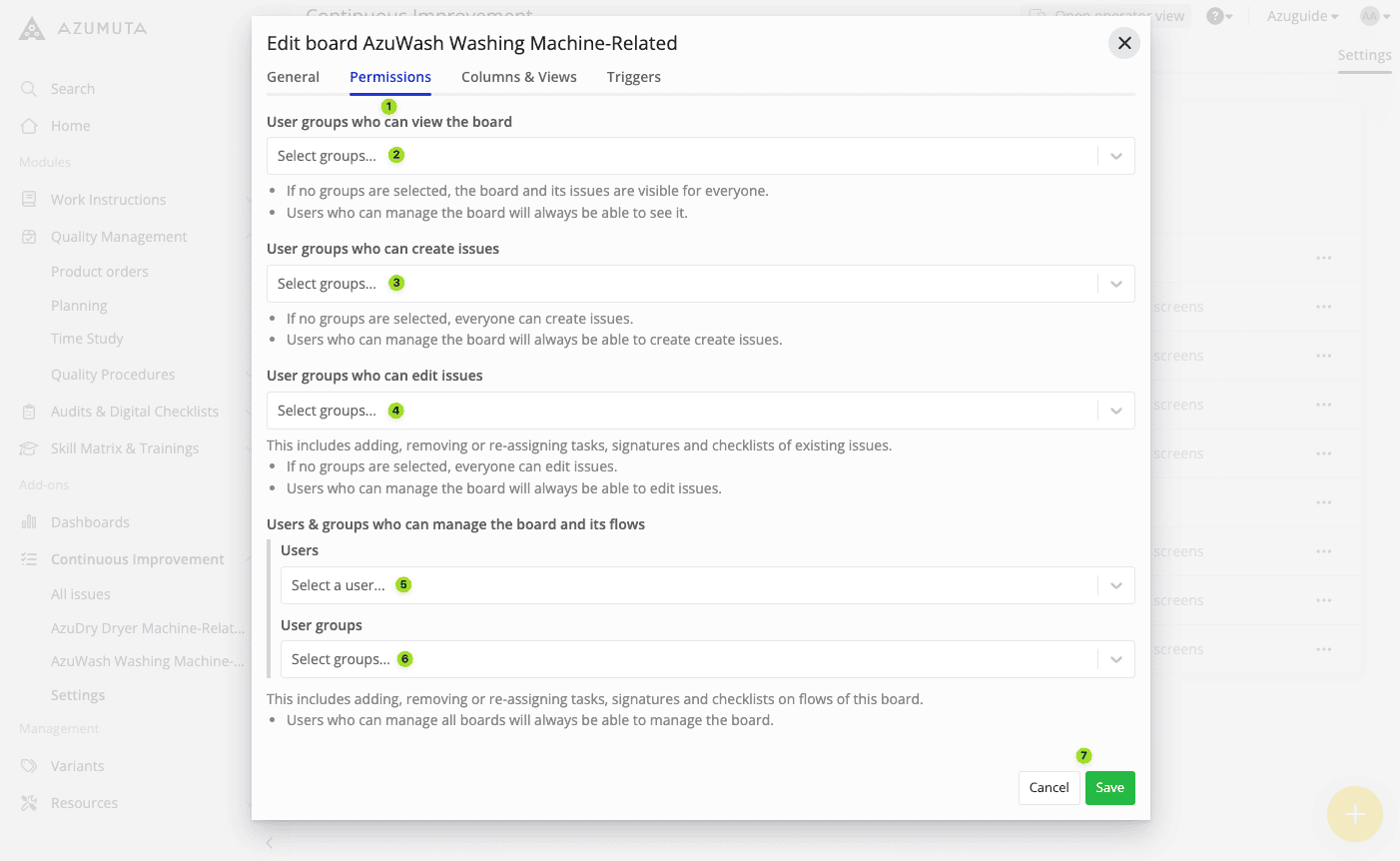
On the Permissions tab, you can select which user groups can:
- View the board. If none are selected, everyone can view it.
- Create an issue in the board’s improvement flows. If none are selected, everyone can.
- Edit an issue in the board’s improvement flows. If none are selected, everyone can.
- Manage the board and its improvement flows. You can also grant this to individual users.
Click Save.
Edit columns and views
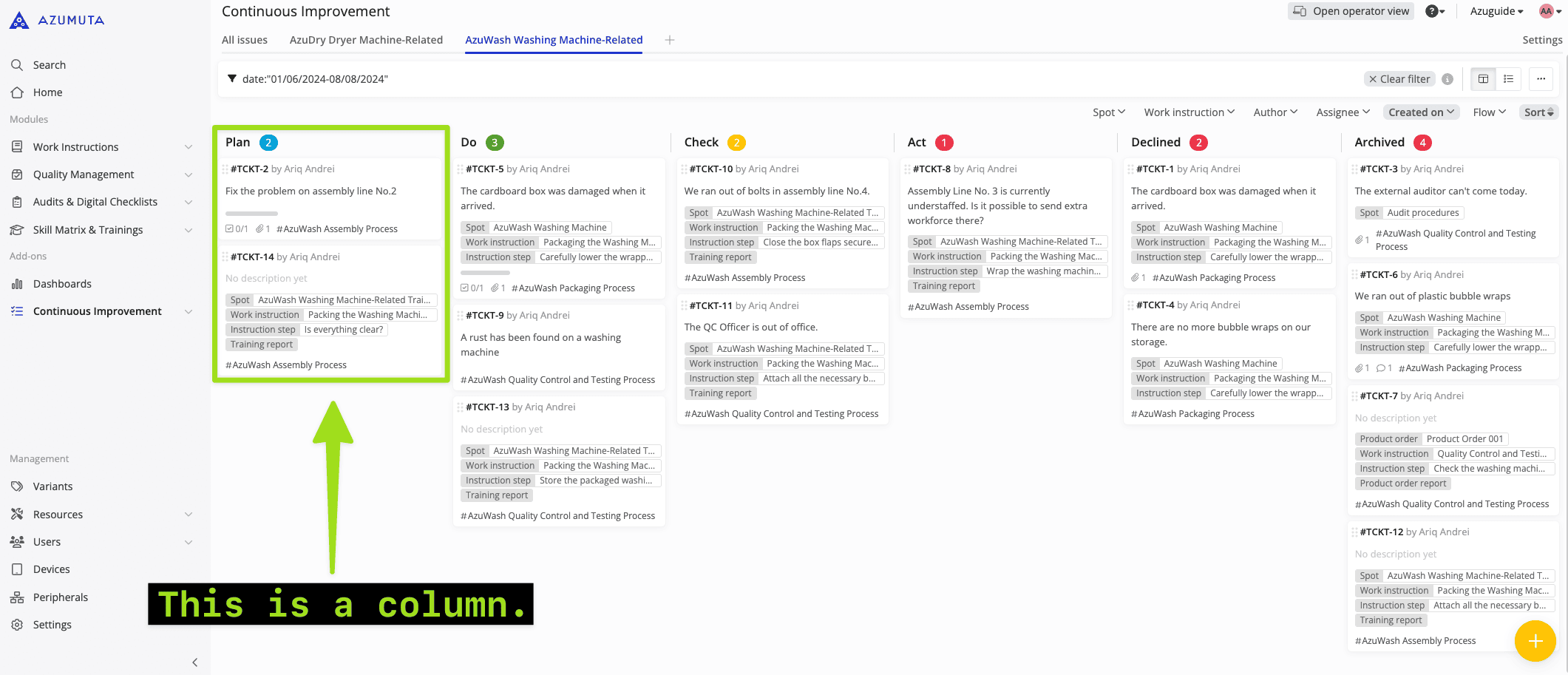
A column represents a ticket’s status, such as Plan in the example below. This board has 6 columns: Plan, Do, Check, Act, Declined, and Archived.
Edit columns
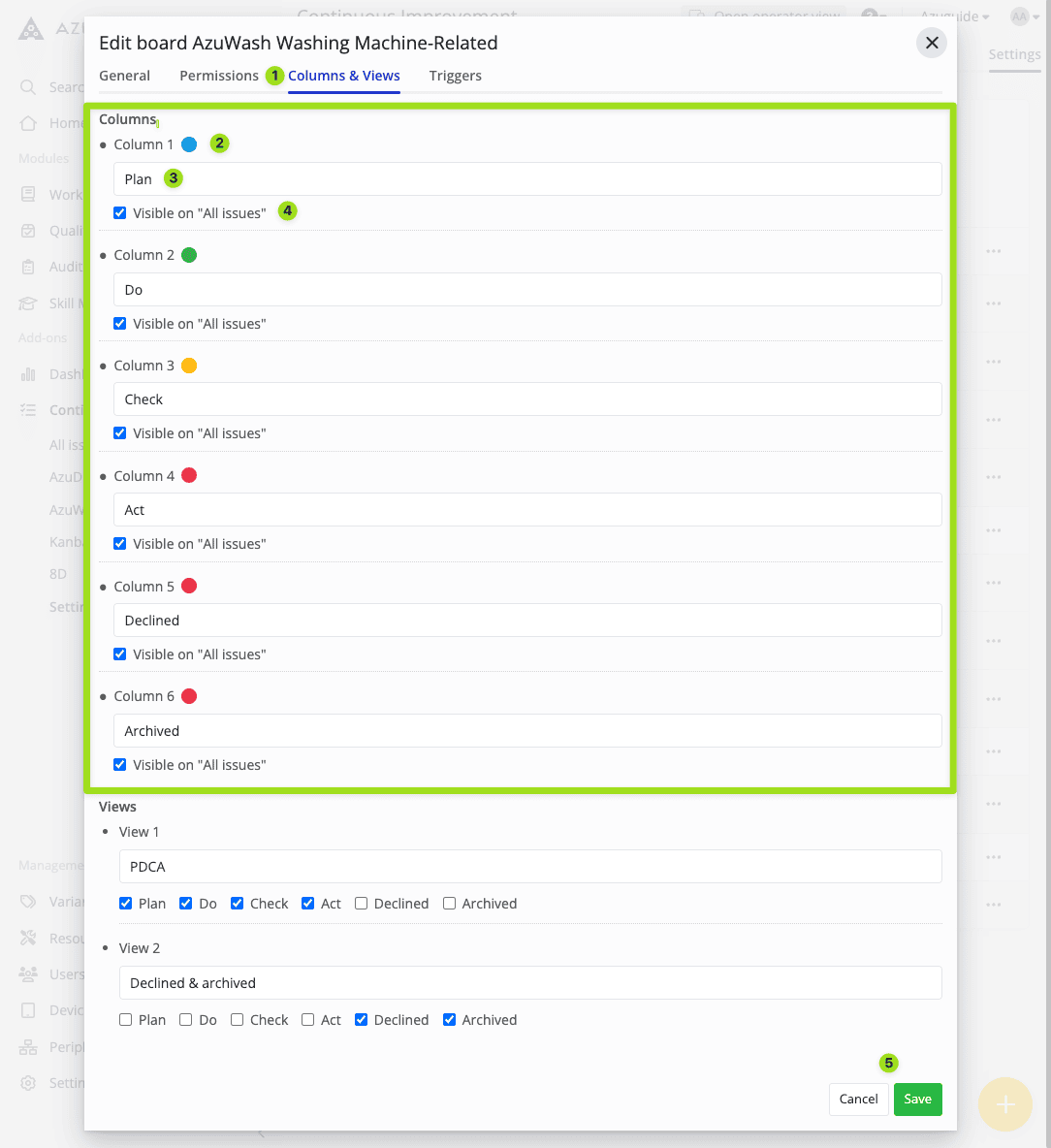
On the Columns & Views tab, for each column you can:
- Change its color.
- Change its name.
- Choose whether its issues appear on the All issues tab.
Click Save.
Note: New boards start with 2 columns. To request more, contact support@azumuta.com.
Edit views
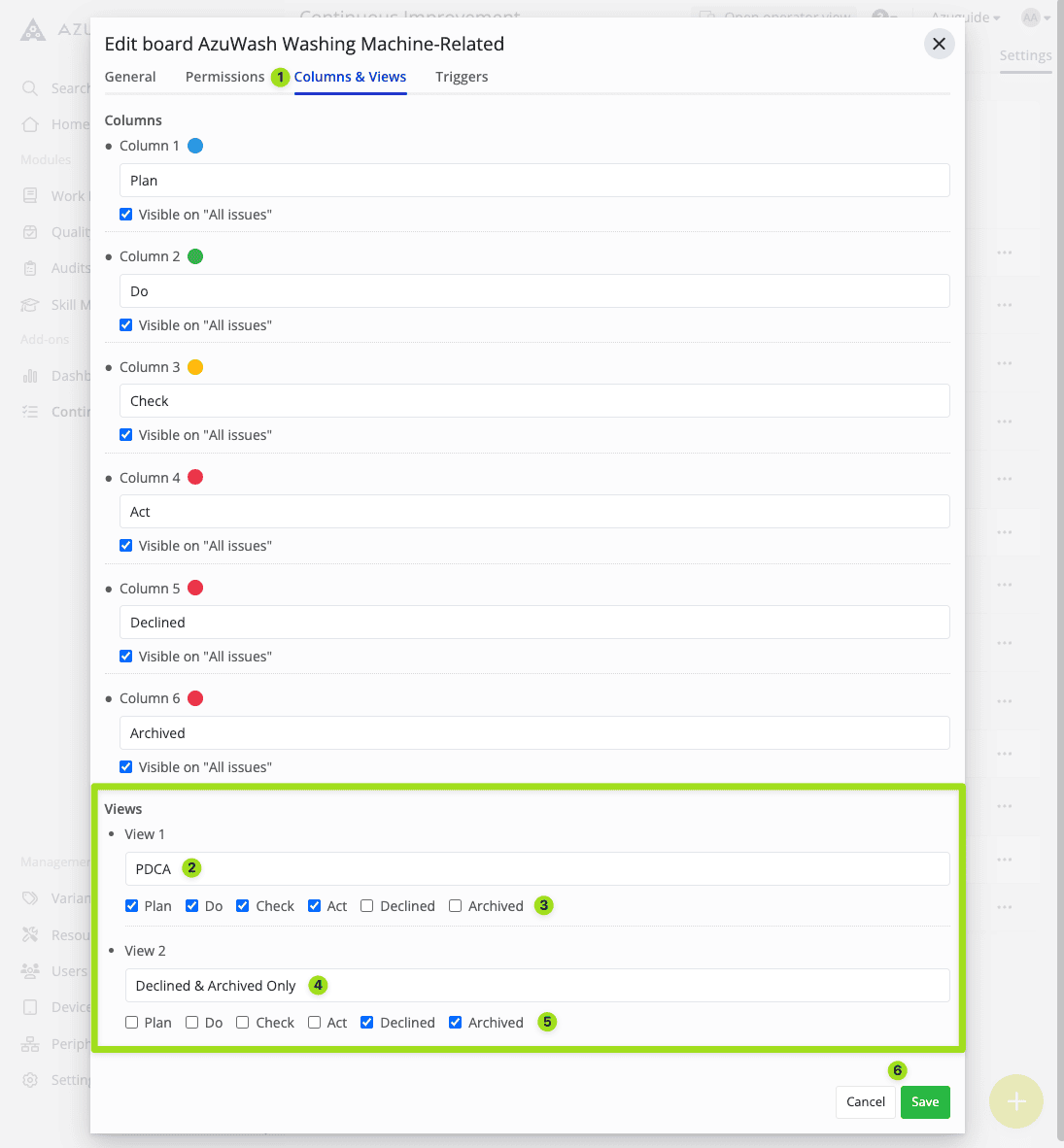
Still on the Columns & Views tab, for each view you can change its name and choose which columns it displays.
Click Save.
Once you’ve configured your views, you can choose which one to display on your improvement board:
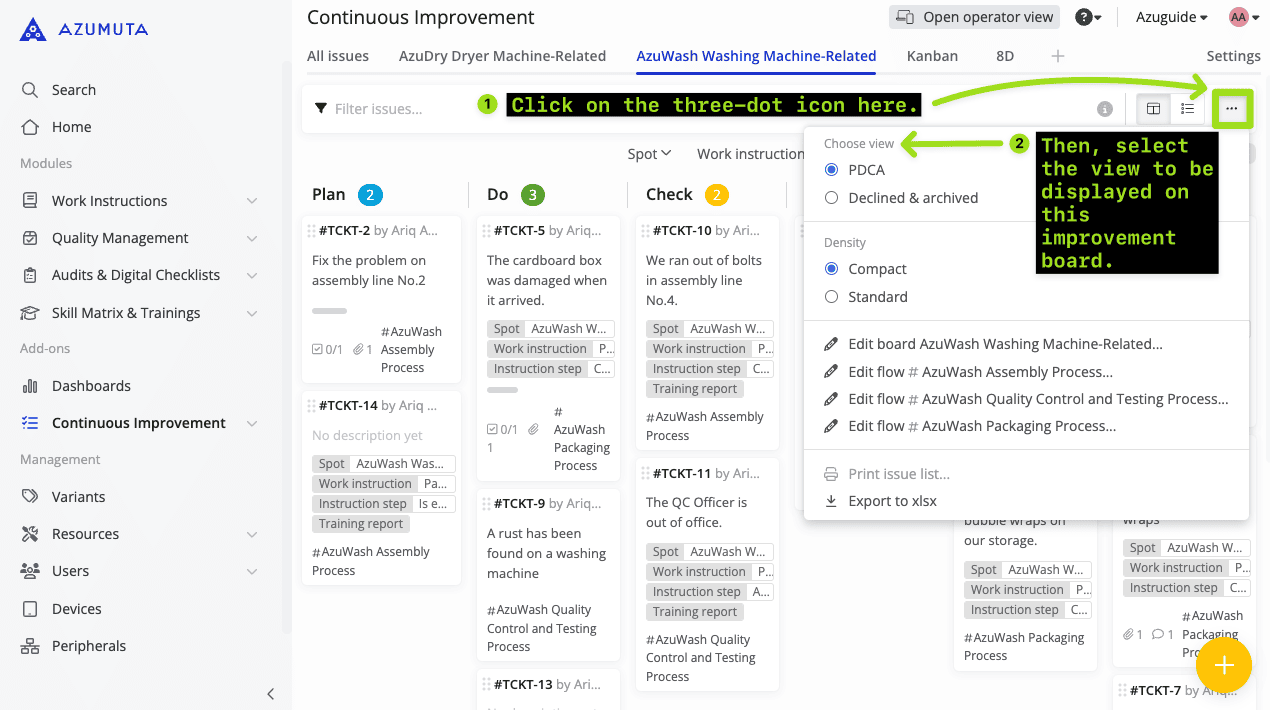
Automate with triggers
A trigger automates a task based on an event in your workspace. See triggers to learn more.
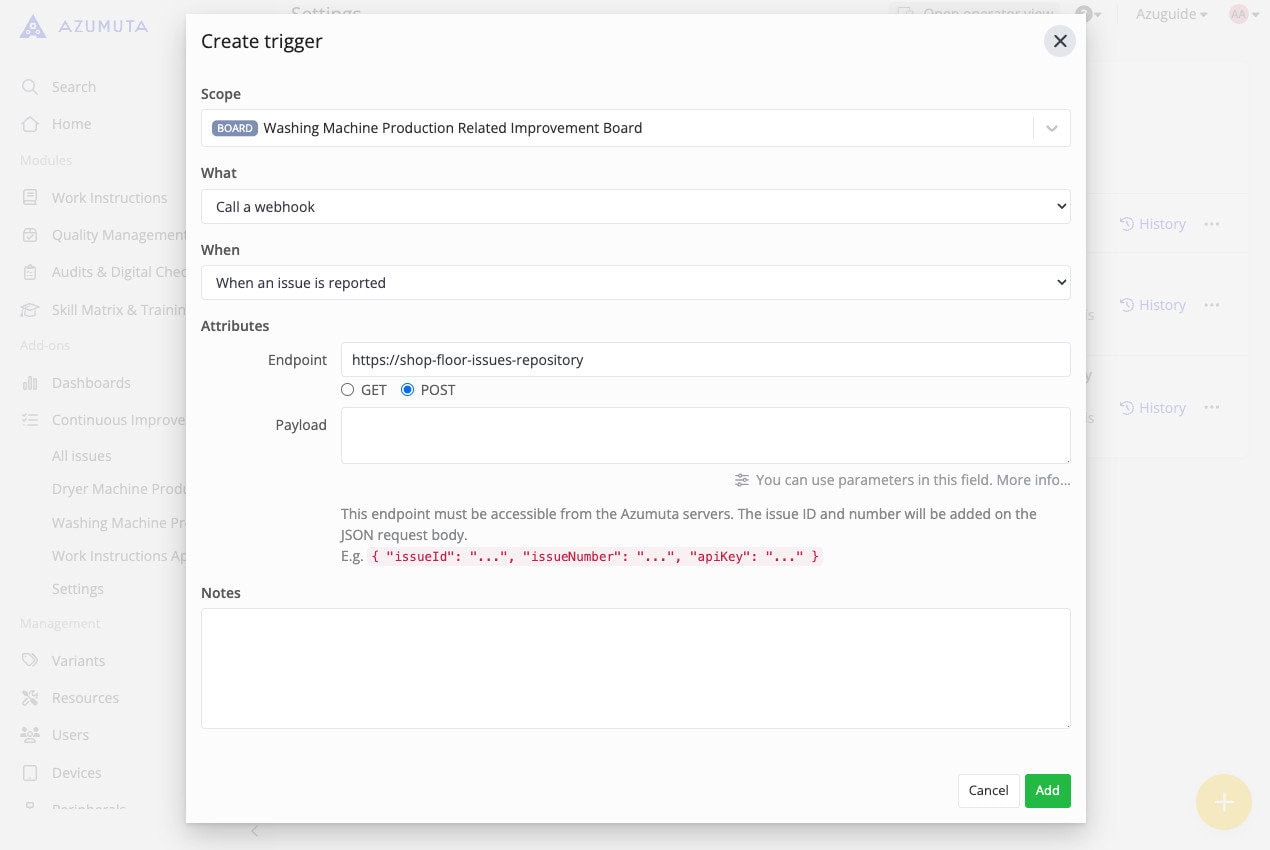
Delete an improvement board
Before deleting a board, delete its improvement flows first.
From the board menu, click Delete board, then confirm with Delete.