
Create an audit
Note: In order to use any of the features in the Audits & Digital Checklists chapter, you will need to have access to the Audits & Digital Checklists module. You can reach us out through sales@azumuta.com to learn more.
What Is an Audit?
In Azumuta, an audit is a work instruction that was made under the Audits & Digital Checklists module.
An audit can belong to a folder (which gathers a group of audits under one roof – generally due to their similarities) or be a standalone audit.
Create an audit folder
Before creating your first audit, it’s best to create a folder. A folder allows you to group multiple audits in one location, making it easier for you to manage your audits. To create a folder:
- Click Audits & Digital Checklists on the homepage sidebar.
- Click Audit procedures.
- Click the yellow plus button on the bottom right of the screen.
- Click Create folder.
- Fill in the available fields (only the folder name field is mandatory – the rest are optional).
- Click Add.
Create an audit on a folder
Once a folder has been made, you can create audits there. To make one:
- Click Audits & Digital Checklists on the homepage sidebar.
- Click Audit procedures.
- Click one of the existing folders.
- Click the yellow plus button on the bottom right of the screen.
- Click Create audit.
- Fill in the available fields (only the audit name is mandatory – the rest are optional).
- Click Add.
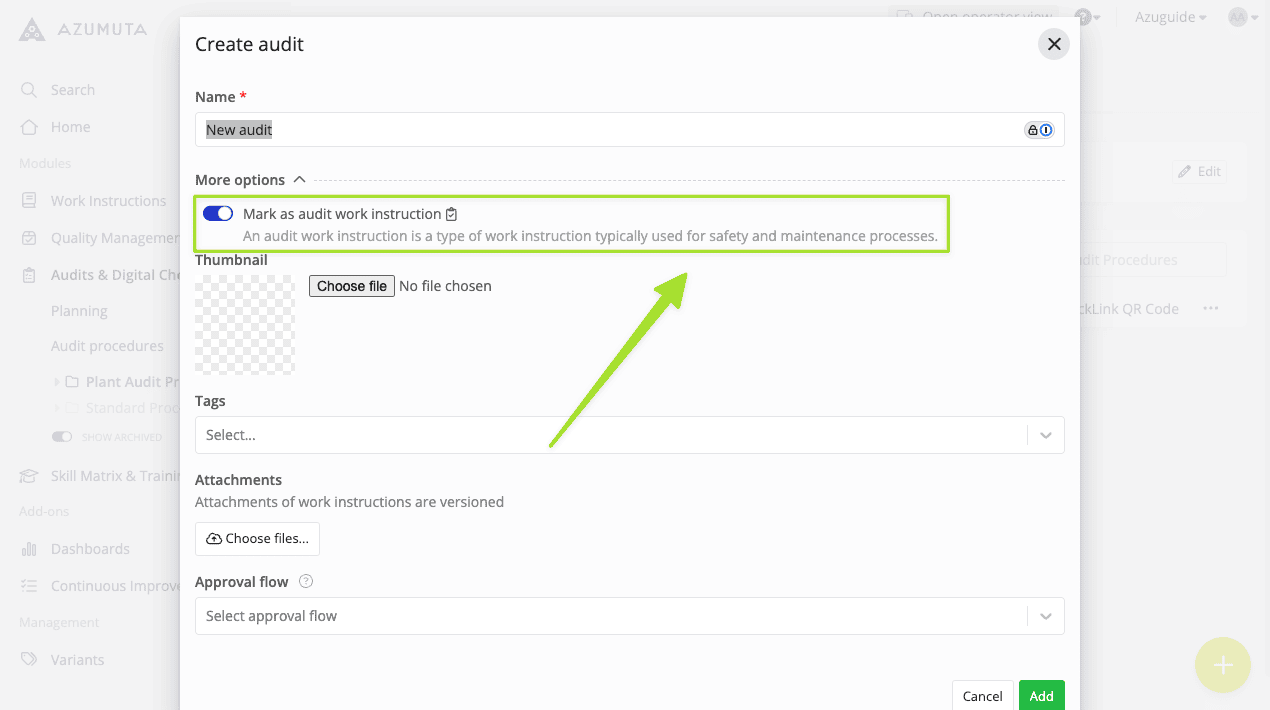
Note: By default, any audit made under the Audits & Digital Checklists module are marked as an "audit work instruction". This is what separates an audit from a regular work instruction.
Create a standalone audit
You can also create an audit that is independent of any folder. To do this:
- Click Audits & Digital Checklists on the homepage sidebar.
- Click Audit procedures.
- Click the yellow plus button on the bottom right of the screen.
- Click Create audit.
- Fill in the available fields (only the audit name is mandatory – the rest are optional).
- Click Add.
Tip: You can create an audit under any module in Azumuta, as long as you activate the Mark as audit work instruction button, as shown below.