Edit a variant
Open the variant editor menu
- Click Variants under Management.
- Click the ⋮ (three-dot) icon next to the variant that you wish to edit.
- Select Edit variant.
- There, you can edit the variant’s name, color, and description.
- Click Save when you’re done.
Unlink a variant from a work instruction
- Navigate to the work instruction with a variant that you would like to unlink from.
- Click the Variants tab.
- Click the ⋮ (three-dot) icon.
- Select Unlink variant.
- Click Unlink to confirm.
Delete a variant
After a variant has been unlinked from all work instructions and no more instruction steps are linked to this variant, it is possible to remove this variant. Removing an existing variant can be done in the following way:
- Go to Management in the homepage sidebar and click Variants.
- Click the ⋮ (three-dot) icon next to the variant that you wish to delete. Make sure that there’s no link icon next to it.
- Click Delete variant.
- Click Remove.
Change the order of a variant
- Navigate to the work instruction with the targeted variant.
- Click the variants tab.
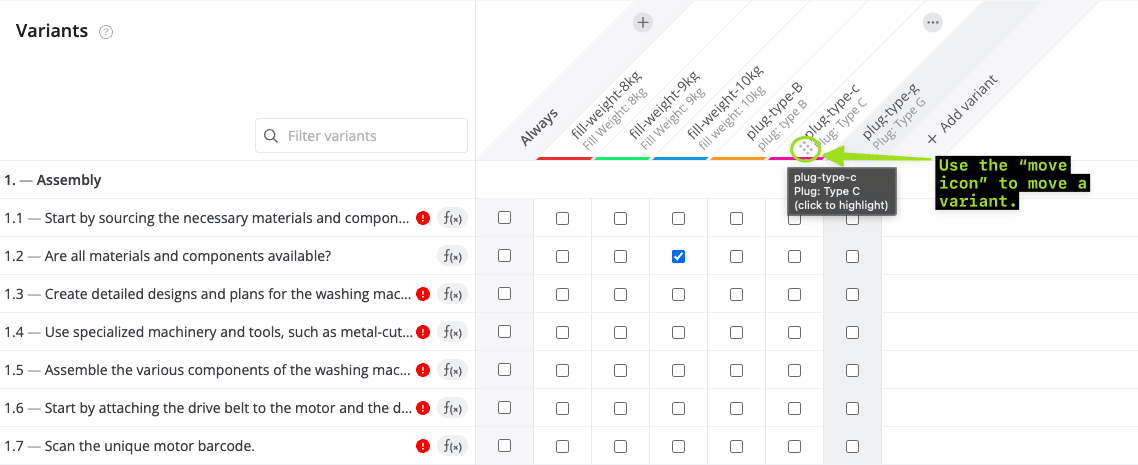
- Hover your cursor over the variant you wish to move, and click the move icon.
- Click, hold, and drag the variant to its new position, and drop to move.