
Revision History
Azumuta keeps the saved versions of each work instruction. Use Revision History to compare versions or to restore old content.
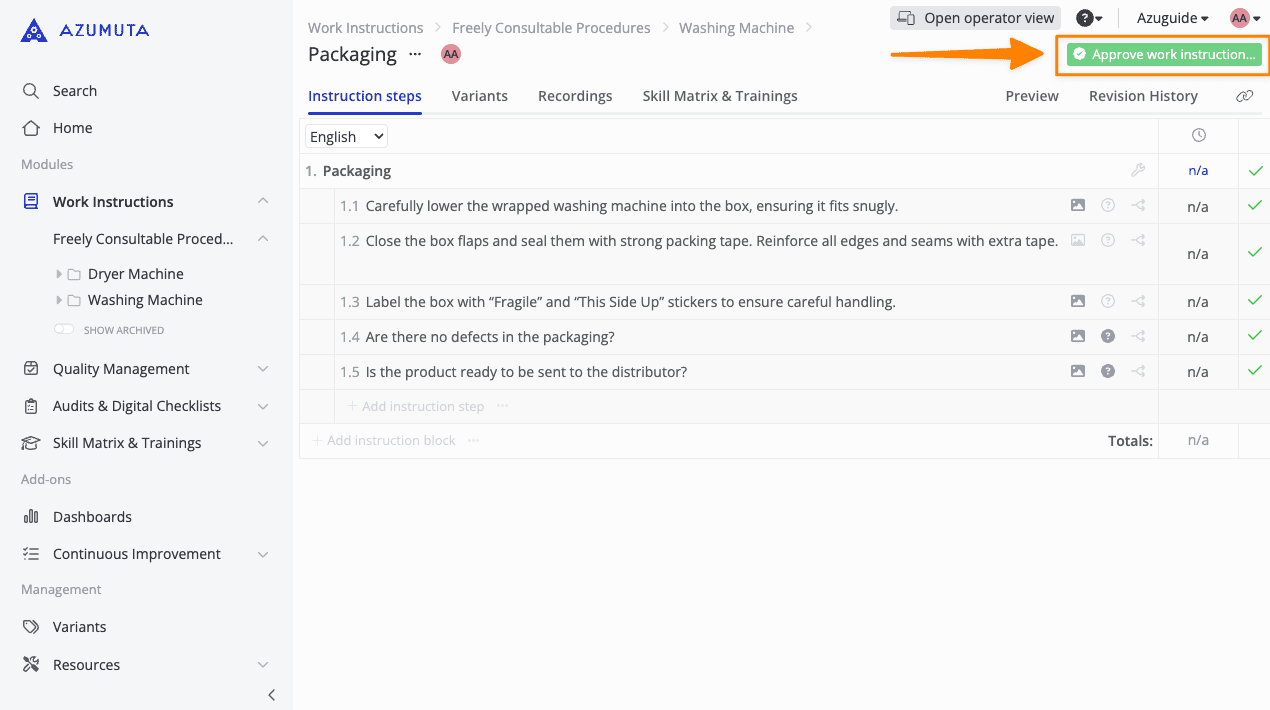
View and compare work instruction versions
- Go to the work instruction.
- Click Revision History.
- Select the versions that you want to compare.
- Click Only show differences to hide content that did not change.
- If the work instruction has multiple languages, select the applicable language.
- Click Preview operator view to see the version in the operator layout.
View the revision history of an instruction step
- Go to the instruction step.
- Click Open.
- Click Revision History.
- Select a version.
- Click View differences.
Restore a previous work instruction version
Restore a version when you must use its content again. Azumuta does not remove later versions. Azumuta creates a new version from the selected version.
- Go to Revision History.
- Find the version that you want to restore.
- Click the ⋮ (three-dot) icon for that version.
- Click Restore this version.
- Confirm the restore operation.
The new version shows the source version in Revision History. Approve the new version with your usual approval process.
Restoring a version replaces current draft changes. Save required draft content before you restore the version.
Control work instruction name changes with approval
Opt-in feature. Approval-controlled work instruction names are available by opt-in only. To enable this feature or ask questions, contact support@azumuta.com.
When this feature is active, a name change belongs to the new work instruction version. The new name becomes effective only when that version becomes effective.
Azumuta keeps the applicable version name in places that have a version reference. These places include recordings, reports, exports, product orders, planning, issues, and checklists. Thus, a later name change does not change the name in historical records.