
Add, edit, and delete a part
Add a new part to your workspace
- Click Resources under Management.
- Click Parts.
- Click the yellow plus button.
- Fill in the available fields (only the image, the part number, and the description are mandatory).
- Click Add.
Add a new part category
It’s a good practice to group your parts into several categories. Consequently, it’ll be easier for you to parts in your workspace.
- Click Resources under Management.
- Click Parts.
- Click the plus icon next to existing part categories (if there are existing part categories already) or next to All parts (if there are no existing part categories yet).
- Type in the name of the part category.
- Click Add.
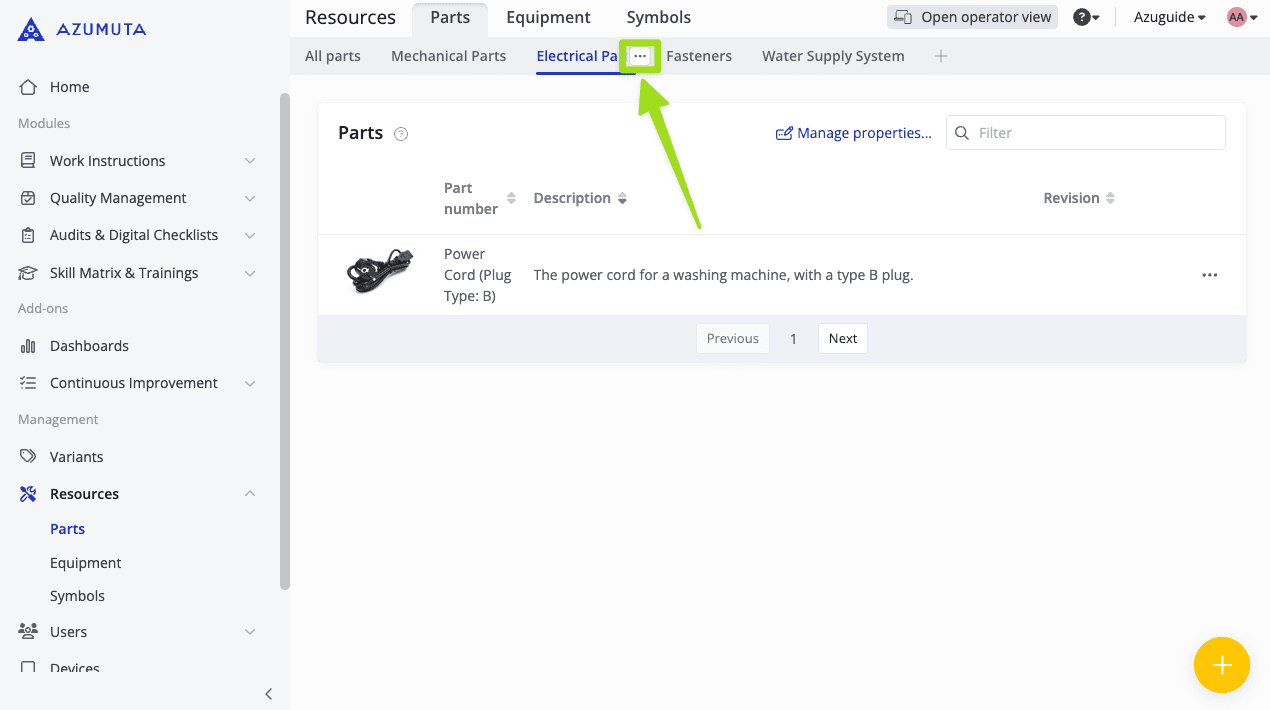
To edit or delete a part category, click the ⋮ (three-dot) icon next to the part category’s name, as shown in the image below:
Open the part editor
- Click Resources under Management.
- Click Parts.
- Click the ⋮ (three-dot) icon next to the part that you wish to edit.
- Click Edit part.
Here’s what you can edit on the part editor:
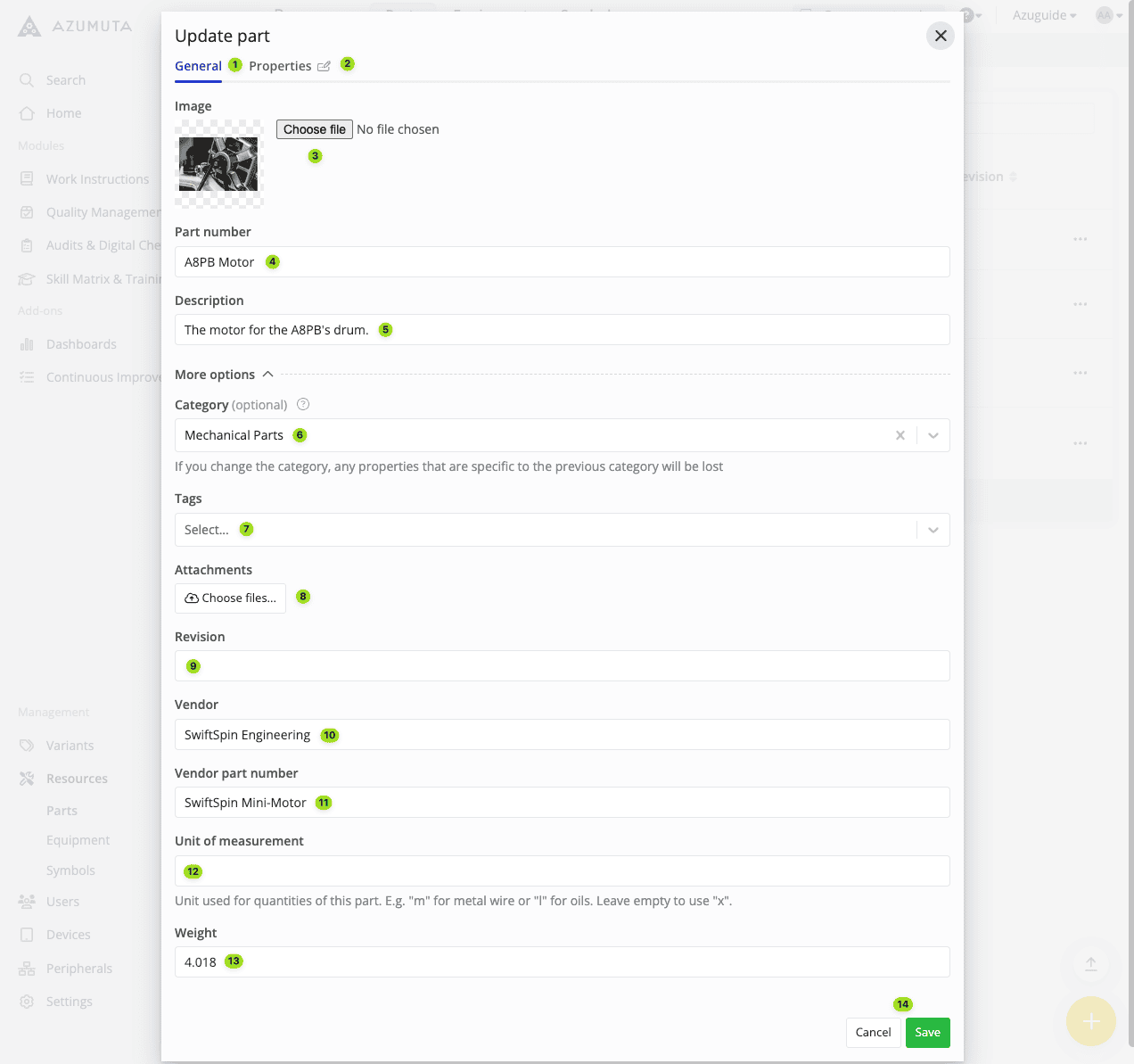
- The General tab, where you can edit a part’s main attributes.
- The Properties tab, where you can manage a part’s properties.
- Click to change the part’s image.
- Edit the part’s number/name here.
- Edit the part’s description here.
- Edit the part’s category here.
- Edit the parts’s tags here.
- Add attachments here.
- If there was any revision to this part, edit it here.
- Edit the part’s vendor/manufacturer name here.
- Edit the part name that was given by the vendor/manufacturer here.
- Edit the part’s unit of measurement here. This field is useful for parts that are uncountable and can only be measured. For example, a liquid paint can be measured in liters.
- Edit the part’s weight here.
- When you’re done with your edits, click Save. However, if you would like to cancel your edits, click Cancel.
Delete a part from your workspace
- Click Resources under Management.
- Click Parts.
- Click the ⋮ (three-dot) icon next to the part that you wish to delete
- Click Delete part.
- Click Delete.